
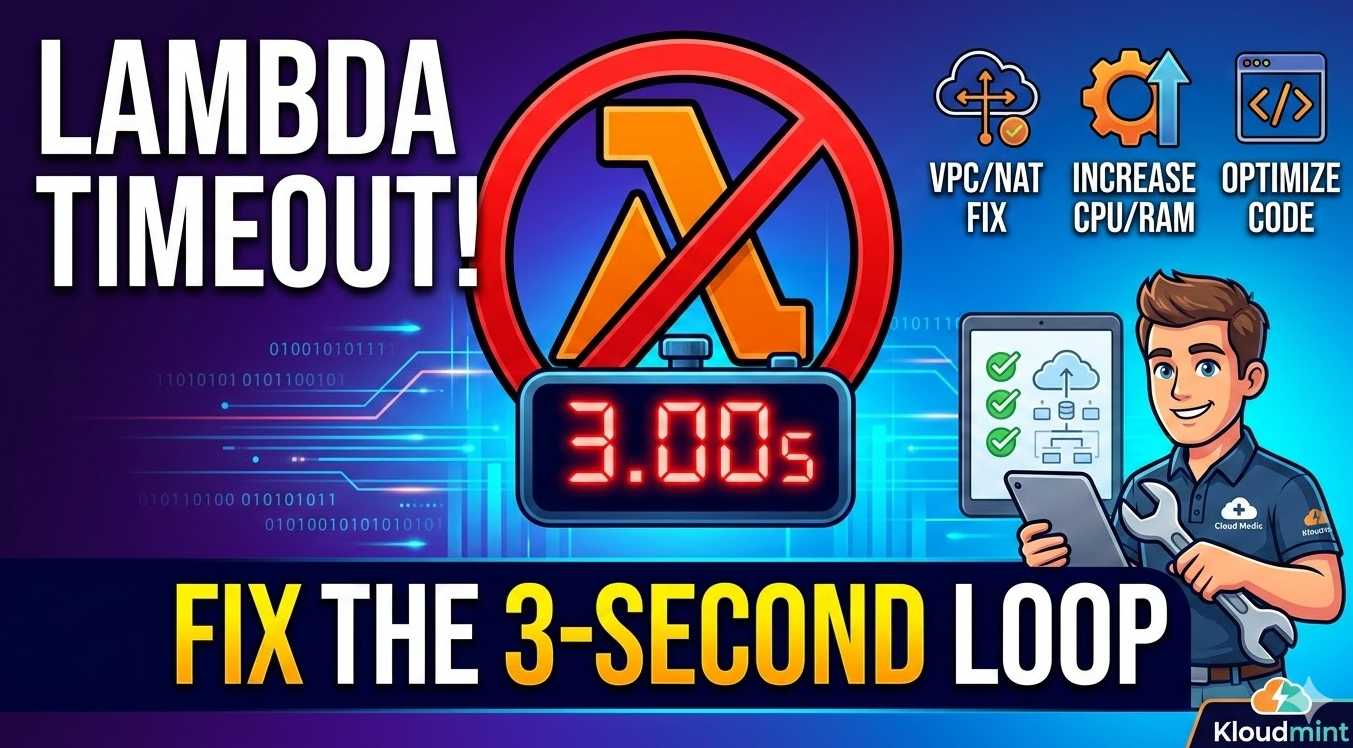
AWS Lambda Task timed out after 3.00 seconds – You’ve seen it in your CloudWatch logs: Task timed out after 3.00 seconds. It’s the “Blue Screen of Death” for serverless developers. While your first instinct might be to slide that configuration bar from 3 seconds to 30, stop. Increasing the timeout without diagnosing the root cause is like treating a broken leg with a painkiller—it masks the symptom but doesn’t fix the bone. At Kloudmint, we call this the “3-Second Loop,” and it’s almost always a symptom of a deeper architectural bottleneck.
As a Cloud Medic, let’s perform a diagnostic check on your function to get your infrastructure back in mint condition.
Why is My AWS Lambda Task timed out after 3.00 seconds?
The 3.00-second mark is significant because it is the default timeout for any newly created AWS Lambda function. If your function hits this limit, it means the AWS Lambda service forcibly terminated the execution before your code could finish or return a response.
Common scenarios where this happens:
- The VPC Black Hole: Your function is trying to reach the internet or an RDS instance without a proper route.
- The “Cold Start” Struggle: Your initialization code is too heavy for the allocated memory.
- Dependency Latency: An external API (like a CRM or a legacy database) isn’t responding fast enough.
1. The “Hidden” Network Trap: VPC and Subnets
If your Lambda function is inside a VPC (Virtual Private Cloud), networking is the #1 suspect for a 3-second timeout.
When you place a Lambda in a private subnet to access an RDS database, the Lambda loses its default access to the public internet. If your code tries to call an external API (like Twilio, Stripe, or even an AWS service like S3 via public endpoints), the request will hang until the timeout hits.
The Fix:
- Check your NAT Gateway: Ensure your private subnets have a route to a NAT Gateway in a public subnet.
- VPC Endpoints: If you are calling other AWS services (S3, DynamoDB, Secrets Manager), use VPC Interface Endpoints to keep the traffic within the AWS backbone. This is faster and more secure.
- Security Groups: Ensure your outbound rules allow traffic on the specific ports your application needs (e.g., Port 443 for HTTPS).
2. Memory vs. CPU: The Performance Link
In AWS Lambda, Memory and CPU are linearly linked. If you allocate the minimum 128 MB of RAM, your function receives a tiny fraction of a CPU core.
If your code performs data transformation, encryption, or uses heavy libraries (like Pandas or large Java packages), a 3-second window isn’t enough for a low-power CPU to finish the job.
The Fix:
- Power Tune Your Lambda: Use the AWS Lambda Power Tuning open-source tool to find the “sweet spot” where increasing memory actually reduces execution time (and sometimes cost).
- Allocate 512 MB+: For most production workloads, starting at 512 MB or 1024 MB provides the CPU “oomph” needed to break past the 3-second barrier.
Also check – How to Fix Amazon Connect ICE Collection Timeout in CCP
3. Cold Starts and Heavy Initialization
Are you importing massive libraries inside the handler function? Are you establishing a new database connection every single time the function runs?
The 3-second timer includes the “Invoke” phase, but heavy initialization can eat into that window before your logic even starts.
The Fix:
- Move Connections Outside the Handler: Define your database clients and global variables above the
exports.handler. This allows Lambda to reuse the connection in subsequent “warm” starts. - Lazy Loading: Only import heavy modules if a specific condition is met within your code.
4. Troubleshooting Using CloudWatch and X-Ray
To find the exact line where your code hangs, you need better telemetry.
- Check CloudWatch Logs: Look for the
REPORTline at the end of the log stream. CheckMax Memory Used. If it’s close to your limit, you need more RAM. - Enable AWS X-Ray: This provides a visual trace of your function. It will show you exactly how long each segment (e.g., “Initialization,” “DDB Query,” “External API Call”) took.
- Add Logger Statements: Use
console.log(Node.js) orprint(Python) to timestamp your logic.START: Connecting to DBEND: Connected to DB- If you see the “START” but no “END” before the timeout, you’ve found your bottleneck.
Best Practices for Lambda Timeouts
| Problem | Recommended Action |
| Default Settings | Always increase the timeout to at least 10-15 seconds during development to see how long it actually takes. |
| API Gateways | API Gateway has a hard limit of 29 seconds. Ensure your Lambda times out before the Gateway does (e.g., 25s) to return a clean error. |
| Amazon Connect | If using Lambda for Amazon Connect contact flows, the timeout should stay low (under 8s) to ensure a good caller experience. |
Conclusion: Keep Your Infra in Mint Condition
The Task timed out after 3.00 seconds error is a warning sign that your architecture is struggling. By verifying your VPC routing, optimizing your memory allocation, and cleaning up your initialization code, you can ensure your serverless applications are both fast and reliable.
Also check – How to block phone numbers in amazon connect with and without Dynamo DB