
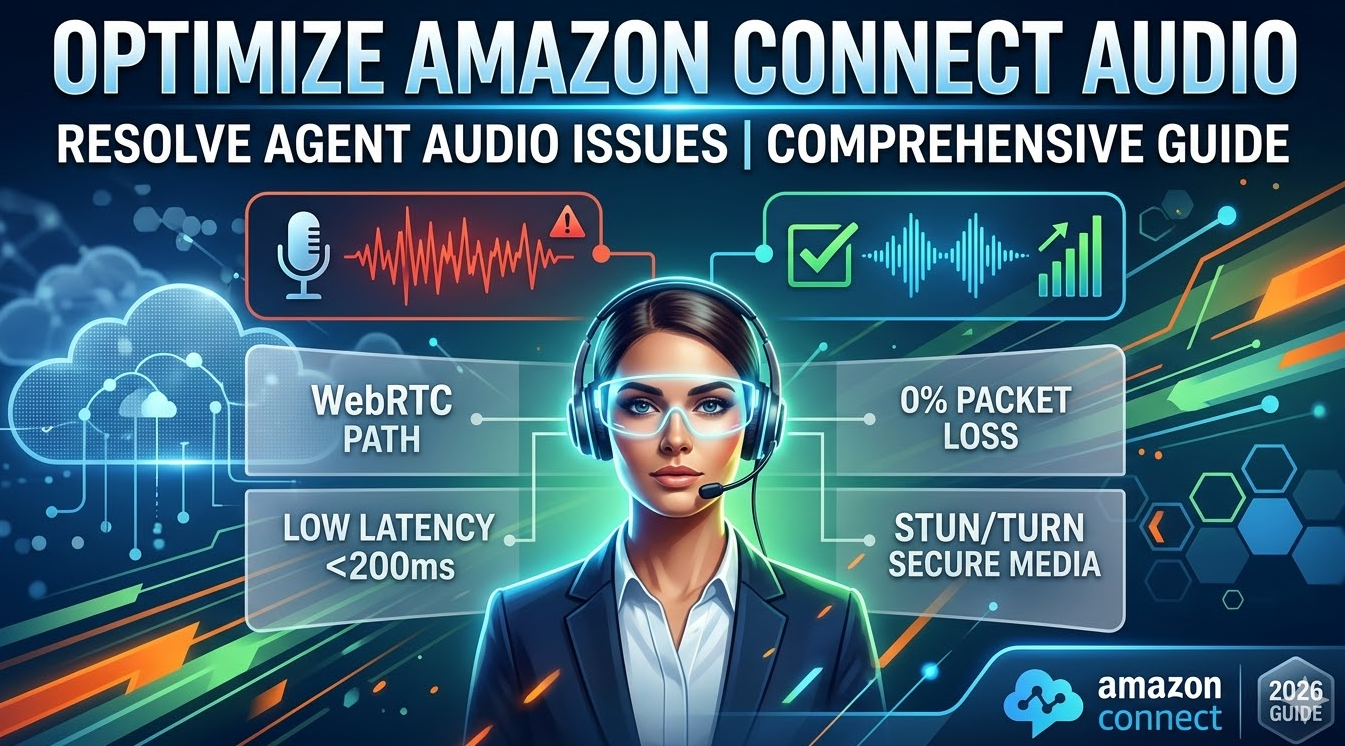
Amazon Connect agent audio issue – In the modern contact center, a single second of “dead air” or a “robotic voice” isn’t just a technical glitch—it’s a direct hit to your Customer Experience (CX) and bottom line. As Amazon Connect continues its massive growth—now facilitating over 20 million daily interactions—ensuring crystal-clear audio quality has become a top priority for AWS Architects and DevOps teams.
If your agents are reporting that they “can’t hear the caller” or are experiencing “choppy audio,” this guide is for you. We will dive deep into the technical root causes of the Amazon Connect agent audio issue, from WebRTC signaling to local hardware bottlenecks.
Why Audio Quality is the Backbone of Your Contact Center
According to recent industry benchmarks, 74% of customers feel that high-quality voice interactions are the most critical factor in resolving complex support issues. When an Amazon Connect agent audio issue occurs, it leads to:
- Increased Average Handle Time (AHT): Agents spend minutes repeating themselves.
- Lower First Call Resolution (FCR): Technical frustration leads to hung-up calls.
- Agent Burnout: Constant technical hurdles decrease employee satisfaction.
Common Symptoms of Amazon Connect Agent Audio Issue
Before diving into the fix, you must identify the “flavor” of the problem:
- One-Way Audio: The agent can hear the customer, but the customer hears nothing (or vice versa).
- Jitter and Choppiness: Audio sounds “broken” or “robotic,” often caused by inconsistent packet delivery.
- Latency (Lag): A noticeable delay between one person speaking and the other hearing it.
- ICE Collection Timeout: The Contact Control Panel (CCP) fails to establish a media connection entirely.
Technical Architecture: The WebRTC Path
Amazon Connect uses WebRTC (Web Real-Time Communication) to deliver audio through the browser. Understanding this path is essential for troubleshooting.
The Logical Flow:
- Signaling: The CCP connects to Amazon Connect via TCP Port 443 to initiate the call.
- Media Negotiation: The browser uses STUN/TURN protocols to find the best path for audio.
- Audio Stream: Encrypted audio (using the Opus codec) flows via UDP Port 3478 (or ephemeral ranges) between the agent’s browser and the Amazon Connect Media turnstiles.
Step 1: Use the Amazon Connect Endpoint Test Utility
The first step in resolving any Amazon Connect agent audio issue , run the Amazon Connect Endpoint Test Utility.
This tool validates:
- Browser Compatibility: Checks if WebRTC is supported and microphone permissions are granted.
- Network Latency: Measures the Round Trip Time (RTT). AWS recommends a latency of < 200 ms for optimal quality.
- Packet Loss: Ideally, this should be 0%. Even 1% packet loss can degrade audio.
Pro Tip: If your latency is between 200ms and 500ms, you are in the “Caution” zone. Audio degradation is likely. Anything above 500ms is considered a failure.
Step 2: Network & Firewall Optimization
Most audio issues are network-related. Ensure your corporate firewall or local router is configured according to AWS best practices.
Required Ports and Protocols
| Traffic Type | Protocol | Port Range | Requirement |
| Signaling/API | TCP | 443 | Mandatory |
| Media (Audio) | UDP | 3478 | Mandatory (STUN/TURN) |
| Media (Ephemeral) | UDP | 49152–65535 | Recommended for direct RTP |
The “SIP ALG” Trap
One of the most frequent causes of one-way audio is a setting called SIP ALG (Application Layer Gateway) found on many commercial routers. While intended to help VoIP, it often corrupts the headers of WebRTC packets. Always disable SIP ALG on your network hardware.
Step 3: Browser and Local Hardware Settings
If the network is green, the issue likely resides on the agent’s workstation.
- Microphone Permissions: Ensure the browser (Chrome or Edge) has explicit permission to access the headset.
- Hardware Acceleration: In some cases, disabling “Hardware Acceleration” in browser settings can resolve audio stuttering on older machines.
- Headset Requirements: Use professional-grade, USB-wired headsets. Bluetooth headsets introduce a second layer of compression and latency that can exacerbate an Amazon Connect agent audio issue.
- Audio Enhancement (New in 2026): AWS recently introduced Voice Isolation mode. This AI-powered feature suppresses background noise and isolates the agent’s voice directly within the browser, significantly improving clarity in noisy environments.
Step 4: Troubleshooting VDI Environments (Citrix/WorkSpaces)
Running Amazon Connect in a Virtual Desktop Infrastructure (VDI) adds complexity. Without optimization, audio is processed on the server (miles away) rather than the local thin client.
Best Practice: Use the Amazon Connect VDI Optimization SDKs for Citrix or VMware. This allows the audio to “hairpin” directly from the local device to AWS, bypassing the VDI server’s overhead.
Monitoring with Amazon CloudWatch
To solve intermittent issues, use the Contact Record (CTR) and CloudWatch Logs. Look for the following metrics:
To_Agent_Packet_Loss_Rate: Indicates issues between AWS and the Agent.From_Agent_Packet_Loss_Rate: Indicates issues with the agent’s upload bandwidth.
FAQ: Amazon Connect Agent Audio Issue
Q1: Why can my agent hear the caller, but the caller can’t hear the agent?
This is typically a firewall issue blocking the outbound UDP stream or a result of SIP ALG being enabled on the router. It could also be a simple “Mute” toggle in the browser or OS settings.
Q2: What is the minimum bandwidth required for Amazon Connect audio?
For a standard voice call, you need roughly 54 kbps of symmetric bandwidth (up and down) per agent. However, to account for signaling and background tasks, we recommend 100 kbps per concurrent agent.
Q3: Does Amazon Connect support Firefox for audio calls?
While Firefox is supported, AWS recommends Google Chrome or Microsoft Edge for the best experience. Note that Firefox requires the CCP tab to be in active focus to maintain audio throughput in some configurations.
Q4: How do I fix “robotic voice” issues?
Robotic voice is almost always caused by Jitter. Ensure the agent is using a wired Ethernet connection instead of Wi-Fi, as Wi-Fi is prone to radio interference and packet bursts.
Conclusion: Achieving Crystal-Clear Conversations
Resolving an Amazon Connect agent audio issue requires a systematic approach: start with the Endpoint Test Tool, verify your UDP 3478 port status, and ensure your agents are equipped with wired USB headsets. By following these AWS-validated steps, you can reduce technical friction and let your agents focus on what matters: the customer.
Also Check – Amazon Connect Agent Can’t Hear Caller? (Workstation Triage)