
Implementing Amazon Connect SAML SSO with Azure AD is a critical requirement for modern, enterprise-grade contact centers. By integrating Azure Active Directory (Azure AD) with Amazon Connect, you eliminate password fatigue and simplify user offboarding. This tutorial follows an expert-level AWS workshop format to help you achieve a robust Azure AD AWS SSO integration.
Whether you are looking for a SAML 2.0 authentication AWS solution or a detailed Amazon Connect SSO setup guide, this article provides the technical depth and best practices required to succeed.
1. Architecture Overview: How It Works
The solution utilizes two distinct Azure AD Enterprise Applications to federate via Identity Provider (IdP) initiated SSO to AWS Identity and Access Management (IAM). This dual-app approach allows you to separate the login experience for Administrators and Agents.
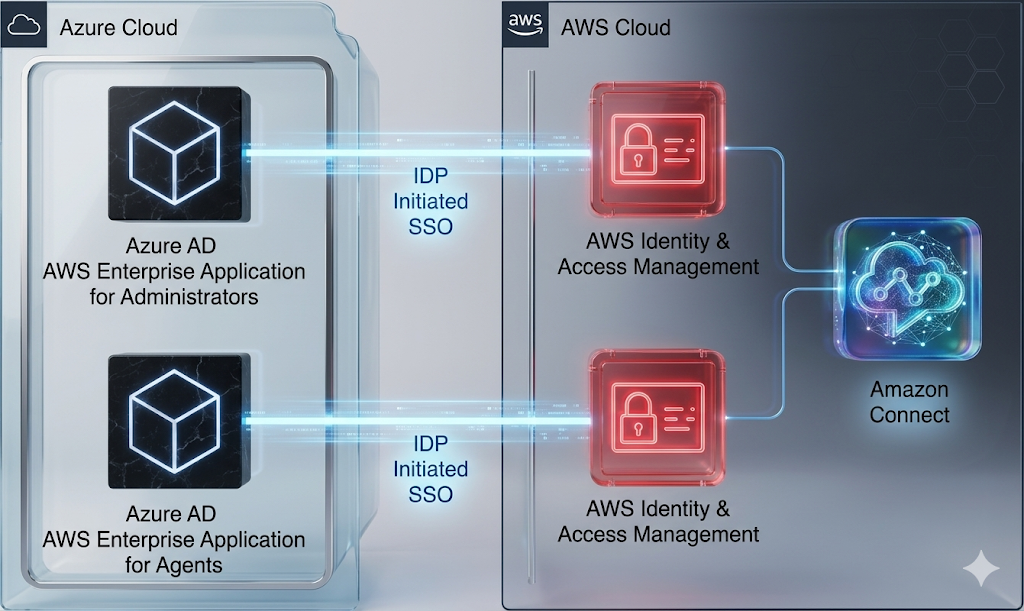
Key Components of Amazon Connect SAML SSO with Azure AD:
- Azure AD: Acts as the Identity Provider (IdP).
- AWS IAM: Acts as the Service Provider (SP), trusting Azure AD through a SAML provider.
- Relay State: A critical URL parameter that determines where the user lands (e.g., the Amazon Connect Console for admins or the CCP for agents).
- Amazon Connect: The contact center instance configured for SAML 2.0 identity.
2. Prerequisites for Amazon Connect SAML SSO with Azure AD
Before starting this Azure AD SAML AWS tutorial, ensure you have the following:
| Requirement | Description |
| AWS Account | Active account with permissions to create IAM roles and policies. |
| Amazon Connect Instance | Instance must be created with SAML 2.0 as the Identity Provider. |
| Azure AD Subscription | Permissions to create Enterprise Applications in the Azure Portal. |
| Matching Usernames | Usernames in Amazon Connect must exactly match their counterparts in Azure AD. |
3. Step 1: Creating Required IAM Policies
To enable federation, you must create two specific IAM policies in the AWS Management Console.
Policy A: Amazon Connect Federation Policy
This policy grants permission to get a federation token for a specific user within your instance.
- Navigate to IAM > Policies > Create Policy.
- Select the JSON tab and paste the following:
{
    "Version": "2012-10-17",
    "Statement": [
        {
            "Sid": "Statement1",
            "Effect": "Allow",
            "Action": "connect:GetFederationToken",
            "Resource": "YOUR_INSTANCE_ARN/user/${aws:userid}"
        }
    ]
}
Note: Replace YOUR_INSTANCE_ARN with your actual instance ARN found in the Amazon Connect Console.
Policy B: Azure AD Access Policy
This policy allows Azure AD to list IAM roles and account aliases for synchronization.
- Create another policy with the following JSON:
{
    "Version": "2012-10-17",
    "Statement": [
        {
            "Effect": "Allow",
            "Action": [
                "iam:ListRoles",
                "iam:ListAccountAliases"
            ],
            "Resource": "*"
        }
    ]
}- Name this policy azure_cli_policy.
Also check – KloudMint AWS Policy Generator
4. Step 2: Creating a Programmatic IAM User
Azure AD needs an IAM user to “handshake” with AWS and pull the available roles.
- Go to IAM > Users > Add user.
- Username:
azure_cli_user. - Access type: Programmatic access.
- Attach the azure_cli_policy created in the previous step.
- Important: Download the
credentials.csvfile. You will need the Access Key and Secret Key later.
5. Step 3: Configuring the Azure AD Enterprise Application
Now, we shift to the Azure portal to set up the Amazon Connect SAML SSO app.
- Log in to the Azure AD Portal.
- Navigate to Enterprise Applications > New application.
- Search for AWS Single-Account Access and select it.
- Name it
Amazon Connect - Admin. - Under Getting Started, select Set up single sign on and choose SAML.
Configuring Basic SAML & Relay State
The Relay State is the magic ingredient that directs users to the correct page.
- For Admins:
https://<regionid>.console.aws.amazon.com/connect/federate/<instance-id>?destination=%2Fconnect%2F. - For Agents (CCP):
https://<regionid>.console.aws.amazon.com/connect/federate/<instance-id>?destination=%2Fconnect%2Fccp-v2.
- In the SAML Signing Certificate section, download the Federation Metadata XML.
Also Check – How to Perform an AWS ME-CENTRAL-1 Recovery: Restoring S3 and DynamoDB after the March 2026 Outage
6. Step 4: Finalizing the AWS-Azure Trust Relationship
Return to the AWS Console to finish the bridge.
- Identity Provider: Go to IAM > Identity Providers > Add provider. Choose SAML, name it
AzureAD_Connect_Admin, and upload the XML file from Azure. - IAM Role: Create a new role for SAML 2.0 Federation.
- Select the provider you just created.
- Choose Allow programmatic and AWS Management Console access.
- Attach both policies (azure_federation_policy and azure_cli_policy).
7. Step 5: Enabling Provisioning and Assigning Users
- Back in the Azure App, go to Provisioning and set it to Automatic.
- Enter the Access Key and Secret Key from your
azure_cli_user. - Once the “handshake” is successful, go to Users and Groups and assign your admin user to the role you created in AWS.
Troubleshooting & Best Practices for Amazon Connect SAML SSO with Azure AD
Troubleshooting Common Errors
- SAML Assertion Failures: Ensure the Signing Option in Azure is set to “Sign SAML assertion” and the algorithm is SHA-256.
- Relay State Issues: Double-check that your destination URL is URL-encoded (e.g., using
%2Ffor/). - Role Not Appearing: Provisioning can take several minutes to several hours depending on your environment.
Best Practices for Amazon Connect SSO
- Use Dedicated Apps: Create separate Azure apps for Admins and Agents to prevent unauthorized console access.
- Security Profiles: Always ensure the Amazon Connect Security Profile matches the user’s role in Azure AD.
- Monitor Logs: Use AWS CloudTrail and Azure Sign-in logs to troubleshoot authentication failures.
Comparison: SAML 2.0 vs. AWS IAM Identity Center
While this tutorial focuses on standard SAML 2.0 federation, many are moving toward AWS IAM Identity Center SSO.
- SAML 2.0: Better for complex, multi-directory environments where legacy federation is required.
- IAM Identity Center: Recommended for new AWS-native deployments.
FAQ – Amazon Connect SAML SSO with Azure AD
Q: Can I use one Azure AD app for both agents and admins?
A: It is technically possible but not recommended. Using separate apps allows you to use different Relay States, directing admins to the console and agents directly to the CCP.
Q: Why do usernames have to match exactly?
A: SAML relies on the name identifier (NameID) to map the federated identity to the Amazon Connect user record.
Q: Is there a cost for Amazon Connect SSO?
A: AWS does not charge extra for SAML federation, though standard Azure AD licensing costs for Enterprise Applications may apply.
Source – AWS Workshop