
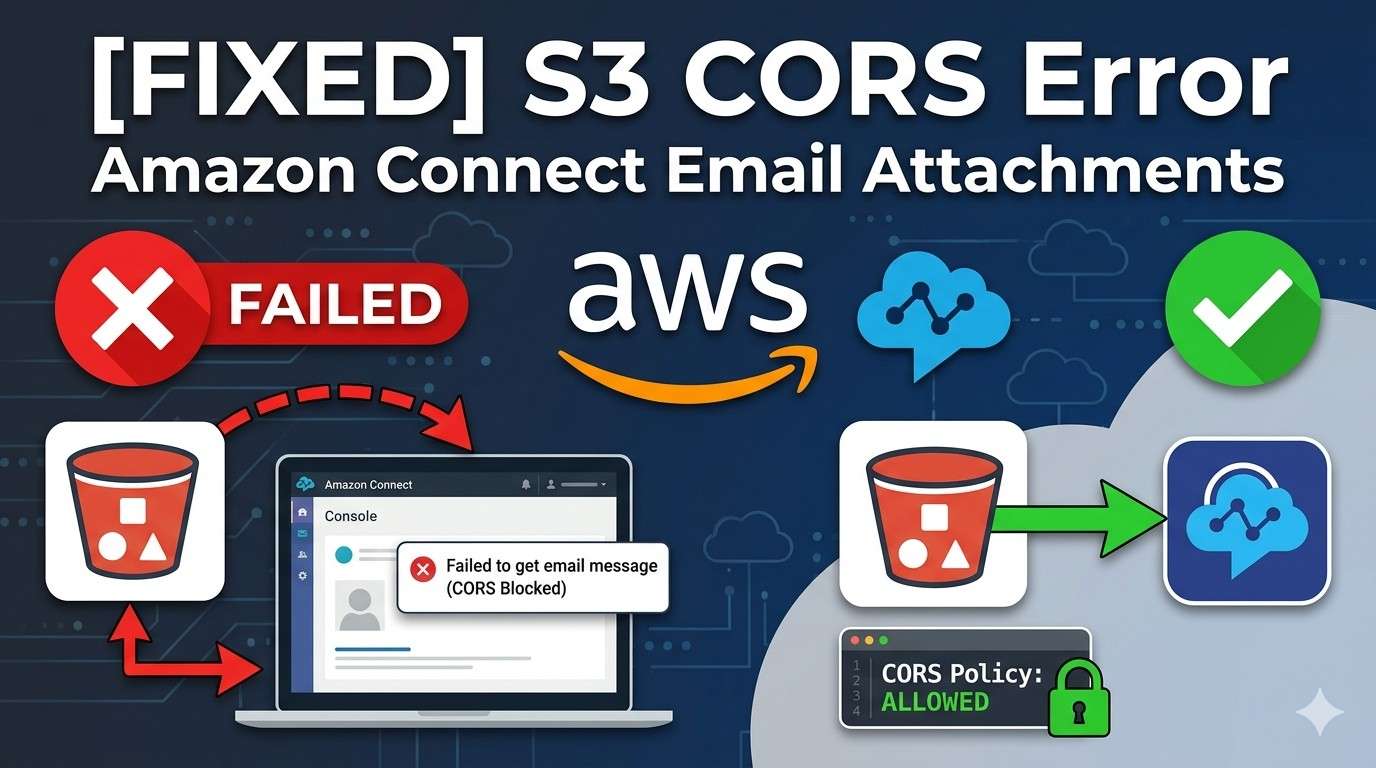
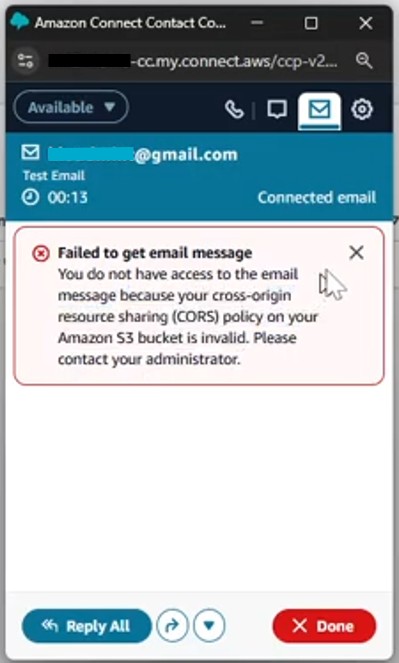
Amazon Connect Failed to get email message CORS – If you are seeing the frustrating “Failed to get email message” error within your Amazon Connect instance, you aren’t alone. This issue typically surfaces when your browser blocks a request to fetch an email attachment or message body because the Amazon S3 bucket lacks the proper permissions to “talk” to your Amazon Connect domain.
The technical culprit? CORS (Cross-Origin Resource Sharing).
In this guide, we’ll walk through why this happens and how to fix it by configuring a secure CORS policy on your S3 attachments bucket.
⚡ Quick Fix: Resolve “Failed to Get Email Message”
If you are seeing a CORS error in Amazon Connect, follow these 4 steps to fix it instantly:
- Identify Bucket: Go to Amazon Connect Console > Data Storage to find your attachments S3 bucket name.
- Access S3 Permissions: Open the S3 Console, select that bucket, and click the Permissions tab.
- Edit CORS: Scroll to the Cross-origin resource sharing (CORS) section and click Edit.
- Apply Policy: Paste a JSON policy that allows GET and PUT methods for your Amazon Connect domain (e.g.,
*.my.connect.aws).
Scroll down for the exact JSON code and a detailed step-by-step walkthrough.
Why Is This Error Happening?
By default, web browsers prevent scripts on one domain (like your Amazon Connect dashboard) from accessing resources on another domain (like an S3 bucket) for security reasons.
While you might be tempted to simply make your S3 bucket “Public” to fix the issue, we strongly recommend against this. Making a bucket public exposes your sensitive customer data to the entire internet. The correct, secure approach is to define a CORS policy that tells S3 exactly which domains are allowed to “GET” and “PUT” files.
Also check – Amazon Connect SAML SSO with Azure AD: Step-by-Step Workshop Tutorial
How to Configure a CORS Policy on Your Attachments Bucket
To allow agents and customers to upload and download files seamlessly, follow these steps to update your Amazon S3 configuration.
Step 1: Find Your Attachment Bucket Name
Before you can fix the policy, you need to identify which bucket Amazon Connect is using.
- Open the Amazon Connect console.
- Navigate to Data storage in the left-hand menu.
- Locate the Amazon S3 bucket name listed under the attachments section. Copy this name.
Step 2: Navigate to S3 Permissions
- Open the Amazon S3 console.
- Find and select the bucket name you identified in Step 1.
- Choose the Permissions tab.
- Scroll down to the Cross-origin resource sharing (CORS) section and click Edit.
Step 3: Apply the CORS Policy
You have two primary ways to configure this. We recommend Option 1 for production environments to maintain high security.
Also Check KloudMint Tools AWS Policy Generator
Option 1: Restricted Access (Best Practice)
This rule specifically allows requests only from your Amazon Connect domains. This ensures that only authorized users on your specific instance can interact with the files.
[
    {
        "AllowedHeaders": [
            "*"
        ],
        "AllowedMethods": [
            "PUT",
            "GET"
        ],
        "AllowedOrigins": [
            "*.my.connect.aws",
            "*.awsapps.com"
        ],
        "ExposeHeaders": []
    }
]
Option 2: Wildcard Access (Troubleshooting/Open)
This rule uses the * wildcard, allowing requests from any origin. Use this only if you have a very specific use case or are troubleshooting connectivity issues before tightening security.
[
    {
        "AllowedMethods": [
            "PUT",
            "GET"
        ],
        "AllowedOrigins": [
            "*"
            ],
       "AllowedHeaders": [
            "*"
            ]
    }
]
References – AWS Docs
Key Benefits of Using CORS Over Public Access
| Feature | CORS Policy | Public Read/Write |
| Security | High – Only specified domains can access data. | Low – Anyone with the URL can access data. |
| Functionality | Supports GET and PUT via browser scripts. | Can be blocked by internal corporate firewalls. |
| Compliance | Meets standard data protection requirements. | Often triggers immediate security compliance alerts. |
Summary of Amazon Connect Failed to get email message CORS
The “Failed to get email message” error is a sign that your security layers are working—they just need to be told that Amazon Connect is a “trusted friend.” By adding the JSON policies above to your S3 bucket, you resolve the loading issues while keeping your customer data locked down tight.