
Quick Fix (The 60-Second Solution)
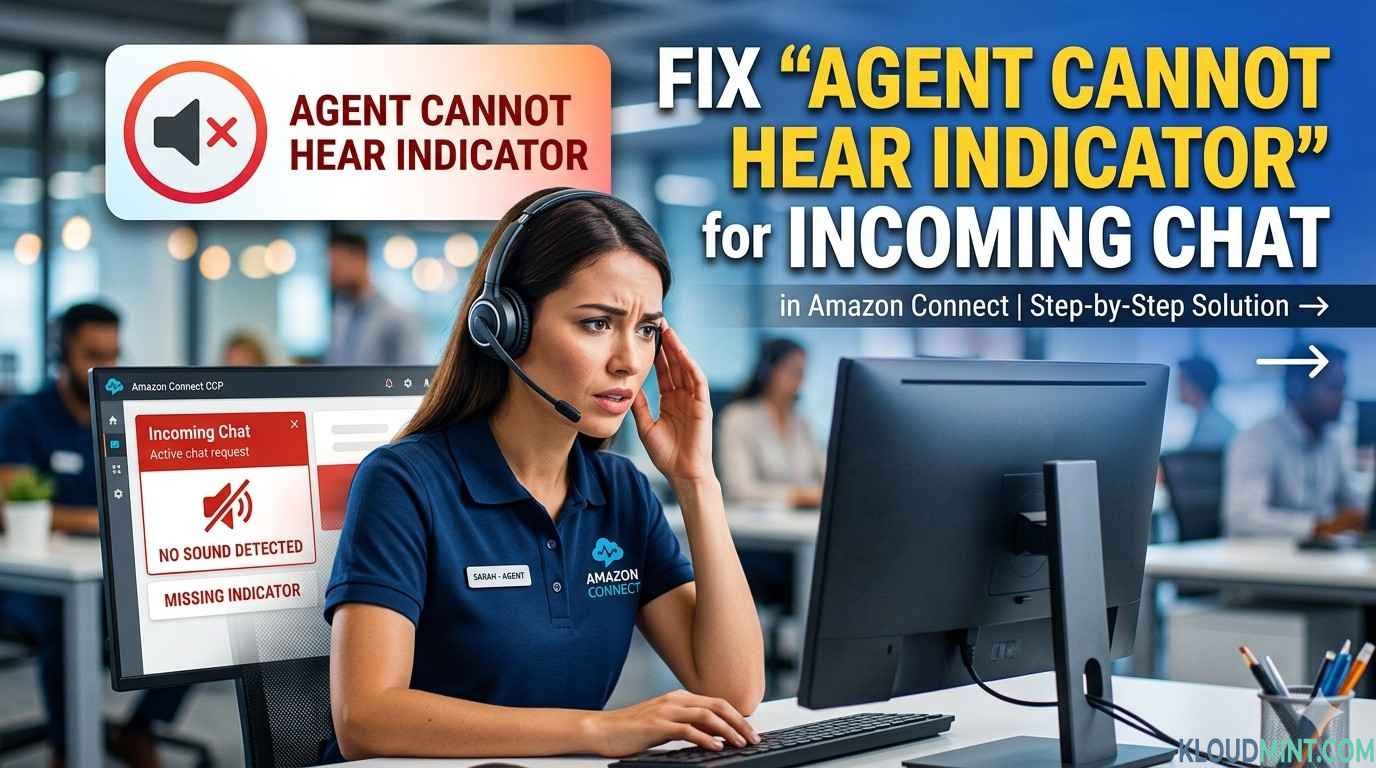
Agent Cannot Hear Indicator for Incoming Chat Issue – If your agents are using Google Chrome versions 71 through 75 (or any version with strict autoplay policies), the audio indicator for incoming chats will fail because Chrome blocks audio from loading without prior user interaction.
The Fix:
- In the agent’s Chrome browser, click the Lock icon (or View site information) next to the CCP URL.
- Go to Site settings.
- Scroll to Sound and change the setting from “Automatic (Default)” to Allow.
- Refresh the CCP page.
Why This Happens: The Chrome Autoplay Policy
The most common cause for “Agent Cannot Hear Indicator for Incoming Chat” issue is a change Google implemented in Chrome versions 71 through 75. To improve user experience, Chrome introduced an “autoplay policy” that prevents web pages from playing sound unless the user has interacted with the page first. Since the CCP loads in a background tab (or the agent hasn’t clicked the window yet), Chrome blocks the incoming chat “ding.”
Step-by-Step Troubleshooting Guide
If the “Quick Fix” above did not resolve the issue, or if you are using a different browser/version, follow this comprehensive troubleshooting flow:
1. Verify Browser Site Permissions (All Browsers)
Even in modern Chrome, Edge, or Firefox, the site permissions must be explicitly granted.
- In Chrome/Edge: Navigate to
chrome://settings/content/sound(oredge://settings/content/sound). Ensure the CCP domain is added to the “Allow” list. - In Firefox: Click the lock icon in the address bar while on the CCP page and ensure “Autoplay Sound” is set to “Allow Audio and Video.”
- Evidence: AWS documentation highlights that microphone and audio permissions are a primary source of CCP issues. If the browser doesn’t recognize the headset or denies audio permissions, the indicator fails.
2. The “Connection Acknowledgment” Factor (For Developers/API Integrations)
If you are not using the standard CCP but have built a custom integration using the Amazon Connect Streams API or the connectparticipant API, the absence of an audio indicator often indicates the contact flow wasn’t triggered properly.
The Sequence Matters:
If the contact is stuck in a “Connecting” state but the agent never hears the notification (and the chat doesn’t appear), you may be missing the Connection Acknowledgment step.
When using the message streaming APIs, you must:
- Call
StartChatContact. - Call
StartContactStreaming. - Call
CreateParticipantConnection(This acknowledges the connection). - Then send the message.
If you send the message before the acknowledgment is processed, the flow does not trigger, and the agent receives no notification.
3. Check the Contact Flow Configuration
The incoming chat sound is tied to the contact flow logic. If the flow fails before it reaches the “Queue” block, the agent will never receive the notification.
- Verify the Flow: Ensure the contact flow is published (not in draft).
- Queue Assignment: Verify that the flow successfully assigns the chat to a queue that the agent is actually logged into. If the agent is not a member of that queue, or if the queue is overloaded, the routing fails silently, and the audio indicator will not play.
4. Third-Party Cookies and Network Permissions
Amazon Connect CCP relies on cookies to maintain the session. If third-party cookies are blocked, the CCP may appear functional but fail to deliver real-time notifications.
- Solution: Add the CCP domain to the cookie allowlist in the browser settings.
- Reference: AWS provides specific guidance on using Amazon Connect with third-party cookies to prevent session interruptions.
Also Check – Amazon Connect Agent Troubleshooting Guide for Logouts and Dropped Calls
5. Headset and Hardware Checks
While the indicator is software-based, the operating system’s audio routing can conflict with browser permissions.
- Device Manager (Windows): Go to Device Manager > Audio inputs and outputs. Ensure the correct headset is set as the default communication device.
- Browser Microphone: In Chrome, go to Settings > Privacy and Security > Site Settings > Microphone. Ensure the correct device is selected.
- AWS Recommendation: If using a wireless headset, try a wired one to rule out Bluetooth bandwidth issues interfering with the WebRTC connection required for the CCP.
Advanced Troubleshooting for Agent Cannot Hear Indicator for Incoming Chat Issue : If Nothing Else Works
Agent Cannot Hear Indicator for Incoming Chat Issue – If you have verified the site settings, flow, and hardware but the issue persists, consider the following:
- Run the Endpoint Test Utility: Amazon Connect provides a test utility to check if the agent’s workstation meets the network requirements. Run this from the agent’s machine to ensure there is no firewall or proxy blocking the WebSocket connection required for chat and audio signals.
- Test in Incognito Mode: If the sound works in Incognito Mode (extensions disabled), the issue is a browser extension (such as an ad blocker) interfering with the CCP’s JavaScript execution. Remove or disable ad blockers for the CCP domain.
- Streams API Version: If you are using a custom CCP built with the Amazon Connect Streams API, ensure you are using the latest version. Older versions (specifically around the Chrome 64-68 era) had known compatibility issues with autoplay policies.
Note – You can utilise our KloudMint Workstation Validator Tool to test your Agent computer or aws tool.
Conclusion for Agent Cannot Hear Indicator for Incoming Chat Issue
The “Agent cannot hear incoming chat indicator” issue in Amazon Connect is rarely a server-side error. It is almost exclusively a client-side browser policy conflict (autoplay/sound permissions) or a mis-sequencing of API calls for custom implementations.
By following the “Quick Fix” for Chrome sound permissions, you will resolve the majority of these tickets. For custom developer implementations, strictly adhering to the StartContactStreaming acknowledgment sequence is critical to ensuring the contact flow invokes the audio indicator.
References – Aws doc, Google chrome help