
Introduction
How to implement Amazon Q in Connect for agent assist – Contact centers live and die by one metric: how fast an agent can get a customer the right answer. Most agents don’t struggle because they lack knowledge — they struggle because that knowledge is scattered across five different systems, three wikis, and a PDF someone uploaded in 2019. While the customer waits on hold, the agent is tabbing between windows trying to find the one paragraph that answers a fairly simple question.
That’s the problem Amazon set out to fix when it built its generative AI assistant for contact centers. If you’re looking at how to implement Amazon Q in Connect for agent assist, you’re really looking at a way to hand every agent, from day-one hire to ten-year veteran, an assistant that already knows your knowledge base, your customer’s history, and the context of the call happening right now.
This guide walks through what Amazon Q in Connect actually is, how it fits into the broader Amazon Connect platform, and — most importantly — exactly how to set it up, step by step, from creating your first assistant domain to configuring AI Prompts and AI Agents that reflect your brand voice.
By the end, you’ll understand:
- What Amazon Q in Connect is and how it evolved from Amazon Connect Wisdom
- How the integration architecture works behind the scenes
- The prerequisites you need before you start configuring anything
- A full walkthrough for enabling, configuring, and testing Amazon Q in Connect
- How to personalize recommendations using customer and business data
- Security, cost, and performance considerations
- Common implementation mistakes and how to avoid them
Let’s get into it.
What Is Amazon Q?
Amazon Q is AWS’s family of generative AI assistants, and it comes in a few different flavors depending on the job you need done.
Amazon Q Developer is the coding-focused version, built on the legacy of Amazon CodeWhisperer. It lives inside your IDE, your terminal, or the AWS console, and helps developers write, explain, debug, and refactor code. It runs in two modes: a conversational Chat mode for quick questions and architecture discussions, and an autonomous Agent mode that can plan and execute multi-step coding tasks — installing dependencies, fixing build errors, and iterating until a task is complete.
Amazon Q Business is the enterprise knowledge assistant. It connects to your company’s internal documents, wikis, and business systems so employees can ask natural-language questions and get answers grounded in your own data rather than the open internet.
Amazon Q in Connect is the version built specifically for contact centers, and it’s the one this guide focuses on. It plugs directly into the agent workspace inside Amazon Connect and gives representatives real-time, AI-generated guidance while they’re on a live call, chat, task, or email with a customer.
A few things make Amazon Q distinct from a generic chatbot bolted onto a support tool:
- It’s grounded in your data. Rather than generating answers from general internet knowledge, it searches your connected knowledge sources and cites where each answer came from.
- It respects your permissions model. Recommendations only draw from data and knowledge bases the underlying identity and access management (IAM) configuration allows.
- It’s customizable at the prompt level. You can rewrite the instructions that shape tone, structure, and behavior without needing to manage the underlying foundation model yourself.
- It doesn’t use your data for model training. Company information stays inside your AWS environment.
What Is Amazon Connect?
Amazon Connect is AWS’s cloud contact center platform. It replaces the traditional on-premises call center hardware and software stack with a pay-as-you-go service that handles voice, chat, tasks, and email in one place.
At a high level, Amazon Connect gives you:
- Contact flows — visual, drag-and-drop logic that routes calls, chats, and other interactions to the right queue or agent
- Agent workspace — the unified desktop where representatives handle interactions, view customer context, and now, interact with AI agents
- Customer Profiles — a unified customer record pulled together from multiple data sources
- Cases — a system for tracking and managing customer issues that span multiple interactions
- Contact Lens — real-time and post-call conversational analytics, sentiment detection, and call transcription
Amazon Q in Connect is layered directly on top of this stack. It reads signals from contact flows, Customer Profiles, Cases, and Contact Lens to build context around every conversation, then uses that context to shape what it recommends to the agent.
What Is Agent Assist?
“Agent assist” is the general industry term for AI tools that support a live customer service representative during an interaction, rather than replacing them. Instead of a fully automated chatbot handling the conversation end-to-end, an agent assist tool works alongside a human, listening in on the conversation and surfacing:
- Suggested responses to what the customer just said
- Relevant knowledge base articles
- Next-best-action recommendations
- Step-by-step guides for resolving specific issue types
- Automatic conversation summaries once the interaction ends
Businesses adopt agent assist tools because they shorten the time it takes to find an answer, reduce the ramp-up time for new hires, and create more consistency across a team of representatives who might otherwise each explain the same policy in a slightly different way.
The benefits show up in a few measurable places:
- Lower Average Handle Time (AHT), because agents spend less time searching
- Higher First Contact Resolution (FCR), because the guidance is more complete
- Reduced training time for new agents
- More consistent brand voice and compliance language across the team
How Amazon Q Works with Amazon Connect
Here’s the mechanical version of what happens during a live interaction once Amazon Q in Connect is active.
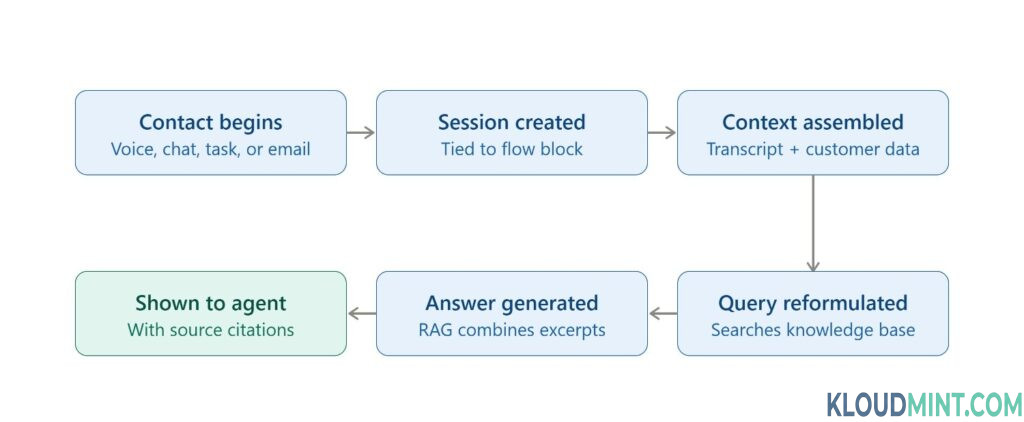
1. A session starts. Every time a contact is associated with an Amazon Q in Connect flow block, a session is created that ties the conversation to an assistant and a knowledge base.
2. Context builds continuously. As the conversation happens, Amazon Q listens to the transcript (for voice, this comes through Contact Lens; for chat, it reads the message thread directly) and combines it with any contextual data passed in from the contact flow — things like the Amazon Lex intent, flow menu selections, or custom contact attributes.
3. Customer and business data get folded in. If you’ve connected Customer Profiles, Cases, or third-party systems like a CRM or order management platform, that data becomes available to the assistant as session variables.
4. Intent detection and query reformulation happen behind the scenes. Amazon Q uses natural language understanding to figure out what the customer actually needs, then reformulates that into a clean search query — optimized for retrieval rather than exactly how the customer phrased it.
5. Retrieval-augmented generation (RAG) produces the answer. The reformulated query searches the connected knowledge base for the most relevant excerpts. Those excerpts, along with the conversation context, get passed to the underlying large language model, which generates a response.
6. The agent sees a suggestion, not an auto-reply. The recommendation appears in the agent workspace along with links back to the source articles, so the agent can verify accuracy before repeating anything to the customer.
7. Step-by-step guides can launch alongside a recommendation. If a knowledge article has been linked to a guided workflow, the agent gets the option to open that guide directly from the recommendation.
This is a meaningfully different architecture than a simple FAQ chatbot. The combination of live transcript analysis, structured customer data, and a searchable knowledge base is what allows the assistant to give contextual, next-best-action guidance instead of generic canned answers.
Prerequisites for Implementation
Before you touch the console, make sure you have the following in place.
| Requirement | Why You Need It |
|---|---|
| An active AWS account | Amazon Connect and Amazon Q both run inside your AWS environment |
| An Amazon Connect instance | Q in Connect attaches to an existing Connect instance — you can’t use it standalone |
IAM permissions for qconnect actions | Administrators need permission to create domains, knowledge bases, AI Prompts, and AI Agents |
| A knowledge base or connectable data source | Amazon Q needs something to search — a Connect-managed knowledge base, or a connector to an external source |
| Contact Lens (for real-time voice recommendations) | Live, automatic recommendations during voice calls depend on Contact Lens conversational analytics being enabled |
| A defined content strategy | Garbage in, garbage out — Amazon Q is only as useful as the knowledge base backing it |
| Security profile planning | You’ll need to assign specific agent permissions (covered below) before agents can see recommendations or guides |
A quick note on licensing: Amazon Q in Connect billing has changed since its original preview period, and per-agent and per-request pricing details are updated periodically. Check the official Amazon Connect pricing page for current figures before budgeting a rollout.
Step-by-Step Implementation Guide
Step 1: Create Your Amazon Q in Connect Assistant Domain
In the Amazon Connect console, navigate to your instance and locate the AI agent / Amazon Q in Connect section in the navigation pane. From there, create a new domain (sometimes referred to as an assistant).
A domain is the top-level container that ties together a knowledge base, integrations, and configuration for your contact center. You can create more than one domain if you need to isolate data — for example, separating a retail division from a healthcare division — but keep in mind that domains don’t share knowledge bases or third-party integrations with each other. Give the domain a clear, descriptive name up front, since renaming it later can complicate audit trails.
Best practice: Treat domain creation like environment planning. If you run separate development and production Connect instances, mirror that separation with separate Q in Connect domains.
Step 2: Configure Encryption with AWS KMS
By default, your domain is encrypted with an AWS-owned key, which works fine for testing but usually isn’t sufficient for production or regulated industries. Create your own AWS Key Management Service (KMS) keys instead — one to protect the excerpts and recommendations generated within the domain, and a second to encrypt data imported from third-party systems such as Salesforce, ServiceNow, or SharePoint.
Managing your own keys gives you full control over rotation policies, access permissions, and audit logging, which matters if you’re subject to compliance frameworks like HIPAA or PCI DSS.
Note: Assign key administration and usage permissions carefully. The people who manage the KMS key don’t necessarily need broader access to the knowledge base content itself.
Step 3: Connect Your Knowledge Sources
With the domain and encryption in place, add your data. This is arguably the most important step in the entire implementation, since the assistant’s answer quality is a direct function of what it can search.
You have two broad options:
- Use a Connect-managed knowledge base — upload or author content directly, and Amazon Q indexes it automatically.
- Connect an external source using one of the built-in connectors (Salesforce, ServiceNow, Zendesk, Microsoft SharePoint Online, Amazon S3, and others).
For each external integration, you’ll define:
- A connection name
- The source URL or endpoint
- An ingestion start date, which determines how far back Amazon Q pulls historical records
- A sync frequency — hourly by default, with options for every three hours or once daily
Tip: Start with a narrower, high-quality content set rather than importing everything at once. A smaller knowledge base of well-maintained, accurate articles consistently outperforms a massive but stale one.
Step 4: Configure Contact Lens for Real-Time Voice Recommendations
If you want Amazon Q to proactively surface recommendations during live voice calls — rather than only responding when an agent manually searches — you need Contact Lens conversational analytics enabled on your instance. Contact Lens supplies the real-time transcription that Amazon Q reads to detect intent as the conversation unfolds.
Chat, task, and email channels don’t require Contact Lens in the same way, since the conversation is already in text form.
Step 5: Add Contextual Data Sources
To move beyond generic knowledge base search and into genuinely personalized recommendations, connect the systems that hold customer context:
- Amazon Connect flows — pass in Amazon Lex intents, conversation transcripts, flow menu selections, and contact attributes
- Amazon Connect Customer Profiles — surface customer details, preferences, purchase history, subscriptions, and custom attributes like loyalty tier
- Amazon Connect Cases — give the assistant visibility into ongoing issue history, so it can suggest continuity-aware next steps
- Third-party systems — CRM platforms, order management systems, and loyalty databases, brought in through custom attributes
You can also push arbitrary custom data into an active session using the UpdateSessionData API, which is useful when you want to hand the assistant something specific — like a product ID — that isn’t already captured elsewhere.
bash
aws qconnect update-session-data \
  --assistant-id <YOUR_ASSISTANT_ID> \
  --session-id <YOUR_SESSION_ID> \
  --data "[
    { \"key\": \"productId\", \"value\": { \"stringValue\": \"ABC-123\" } }
  ]"
Step 6: Build Custom AI Prompts
Out of the box, Amazon Q in Connect ships with default prompt behavior. In most real deployments, you’ll want to rewrite those prompts so tone, structure, and business logic match your brand.
AI Prompts are authored in YAML and support two formats:
- MESSAGES — for prompts that don’t touch the knowledge base directly, such as reformulating a customer’s question into a cleaner search query
- TEXT_COMPLETIONS — for prompts that generate an answer using retrieved knowledge base excerpts
A simplified query-reformulation prompt might look like this:
yaml
anthropic_version: bedrock-2023-05-31
system: You are an assistant that rewrites customer questions into clean, searchable queries.
messages:
  - role: user
    content: |
      Conversation so far:
      <conversation>{{$.transcript}}</conversation>
      Product referenced (if any):
      <productId>{{$.Custom.productId}}</productId>
      Rewrite the customer's need as a concise search query.
      Output only: <query>your query here</query>
And an answer-generation prompt might look like this:
yaml
prompt: |
  You are assisting a customer service agent.
  Query: {{$.query}}
  Relevant knowledge base excerpts: {{$.contentExcerpt}}
  Using only the excerpts provided, write an answer inside <answer></answer> tags.
Supported variables include the recent conversation transcript, the reformulated query, retrieved content excerpts, and any custom session variables you’ve defined.
Once your YAML is ready, register it with the CreateAIPrompt API, then create a version with CreateAIPromptVersion. You’ll reference that specific version when assembling an AI Agent in the next step.
Step 7: Assemble an AI Agent
An AI Agent bundles one or more AI Prompts into a working configuration that Amazon Q in Connect can actually run — for example, combining a query-reformulation prompt, an intent-labeling prompt, and an answer-generation prompt into a single “answer recommendation” agent.
bash
aws qconnect create-ai-agent \
  --assistant-id <YOUR_ASSISTANT_ID> \
  --name custom_answer_agent \
  --visibility-status PUBLISHED \
  --type ANSWER_RECOMMENDATION \
  --configuration "{
    \"answerRecommendationAIAgentConfiguration\": {
      \"answerGenerationAIPromptId\": \"<PROMPT_ID_WITH_VERSION>\",
      \"intentLabelingGenerationAIPromptId\": \"<PROMPT_ID_WITH_VERSION>\",
      \"queryReformulationAIPromptId\": \"<PROMPT_ID_WITH_VERSION>\",
      \"associationConfigurations\": [
        {
          \"associationType\": \"KNOWLEDGE_BASE\",
          \"associationId\": \"<KNOWLEDGE_BASE_ID>\",
          \"associationConfigurationData\": {
            \"knowledgeBaseAssociationConfigurationData\": {
              \"overrideSearchType\": \"SEMANTIC\",
              \"maxResults\": 5
            }
          }
        }
      ]
    }
  }"
As with prompts, version the agent using CreateAIAgentVersion before putting it into production use.
Step 8: Apply the AI Agent
You can set your custom agent as the assistant’s default, or apply it to individual sessions — useful if different product lines or departments need different behavior.
To set it as the assistant-wide default:
bash
aws qconnect update-assistant-ai-agent \
  --assistant-id <YOUR_ASSISTANT_ID> \
  --ai-agent-type ANSWER_RECOMMENDATION \
  --configuration "{ \"aiAgentId\": \"<AGENT_ID_WITH_VERSION>\" }"
To apply it to one active session instead:
bash
aws qconnect update-session \
  --assistant-id <YOUR_ASSISTANT_ID> \
  --session-id <YOUR_SESSION_ID> \
  --ai-agent-configuration "{
    \"ANSWER_RECOMMENDATION\": { \"aiAgentId\": \"<AGENT_ID_WITH_VERSION>\" },
    \"MANUAL_SEARCH\": { \"aiAgentId\": \"<AGENT_ID_WITH_VERSION>\" }
  }"
Step 9: Link Step-by-Step Guides to Knowledge Content
To help agents move from “here’s the answer” to “here’s exactly what to click next,” associate knowledge base articles with guided flows.
- Get the knowledge base ID with
ListKnowledgeBases. - Get the content ID for the specific article with
ListContents. - Get the guide’s flow ARN — either from the flow designer under “About this flow,” or via the CLI.
- Create the association:
bash
aws qconnect create-content-association \
  --knowledge-base-id <KNOWLEDGE_BASE_ID> \
  --content-id <CONTENT_ID> \
  --association-type AMAZON_CONNECT_GUIDE \
  --association '{"amazonConnectGuideAssociation": {"flowId": "<FLOW_ARN>"}}'
Each content resource can only be linked to one guide, but a single guide can be attached to multiple content resources. Confirm the association took effect with ListContentAssociations.
Step 10: Assign Agent Permissions
Agents need specific security profile permissions before any of this becomes visible to them:
- AI agents – View: lets agents search for and view recommendations, and receive automatic suggestions during calls if Contact Lens is enabled
- Custom views – Access: lets agents see and launch step-by-step guides in their workspace
Without these permissions assigned, agents will see a blank or missing panel even if everything upstream is configured correctly.
Step 11: Share Access with Agents
If you’re using the standard Contact Control Panel (CCP), share the appropriate workspace URL with your agents so the CCP and the AI assistant load in the same browser window:
https://<instance-name>.my.connect.aws/agent-app-v2/https://<instance-name>.awsapps.com/connect/agent-app-v2/(if using the AWSApps domain)
Step 12: Test, Validate, and Monitor
Before rolling out broadly:
- Run through representative customer scenarios and confirm the recommendations are accurate and properly sourced
- Check that citations link back to the correct knowledge articles
- Confirm step-by-step guides launch correctly from linked content
- Watch for latency issues, especially with high sync-frequency external integrations
- Gather agent feedback in the first few weeks and use it to refine your AI Prompts
Testing and iteration aren’t a one-time step. Treat prompt tuning as an ongoing process, not a launch-day checkbox.
Real-World Example
Imagine a customer calls a financial services company about their retirement account. As soon as the call connects, Amazon Q recognizes the topic is retirement planning and pulls in the customer’s account balances, current plan type, recent transactions, and risk tolerance profile from Customer Profiles.
While the customer explains they want to increase their contribution percentage, Amazon Q reformulates that request into a clean search query, retrieves the most relevant excerpts from the knowledge base — company policy on contribution changes, regulatory limits for that account type — and generates a recommendation.
The agent sees a suggested response along with a linked step-by-step guide for processing a contribution change. Instead of placing the customer on hold to look up account-type-specific rules, the agent walks through the guide live, resolves the request on the first call, and the interaction gets automatically summarized in the case record once it ends.
That’s the difference agent assist is meant to make: less searching, more resolving.
Architecture Overview
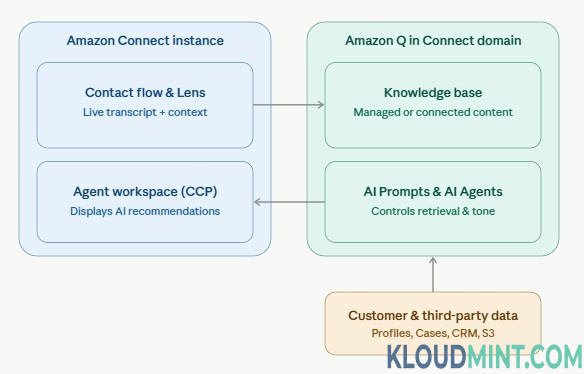
At a component level, a typical Amazon Q in Connect deployment includes:
- Amazon Connect instance — the entry point for voice, chat, task, and email interactions
- Contact flows — pass contextual attributes and trigger the Q in Connect session
- Contact Lens — supplies real-time transcription and conversational analytics for voice
- Amazon Q in Connect domain — the assistant container, encrypted with your KMS keys
- Knowledge base(s) — either Connect-managed content or connected external sources
- AI Prompts and AI Agents — the customizable logic layer controlling tone, retrieval, and generation behavior
- Customer Profiles and Cases — supply structured customer context
- Agent workspace (CCP) — where recommendations, search results, and guides surface to the representative
Security Best Practices
- Use customer-managed KMS keys rather than the default AWS-owned key for production workloads, so you control rotation and access policies directly.
- Apply least-privilege IAM policies — administrators managing prompts and agents don’t need the same permissions as agents who only consume recommendations.
- Separate encryption keys for internally authored content versus imported third-party data.
- Log and audit configuration changes to AI Prompts and AI Agents, since these directly shape what agents say to customers.
- Avoid embedding sensitive data — like full payment card numbers — directly into prompts or session variables unless you’ve specifically designed for that level of compliance.
- Review data residency and compliance requirements (HIPAA, PCI DSS, GDPR) before connecting third-party data sources, especially in healthcare and financial services deployments.
Performance Optimization
- Prioritize knowledge base quality over quantity. A curated set of accurate, current articles beats a sprawling archive of outdated ones.
- Tune your sync frequency based on how often source content actually changes — hourly syncing on a rarely updated source just adds unnecessary overhead.
- Iterate on AI Prompts. Query reformulation quality has an outsized effect on retrieval accuracy — small wording changes in your prompt can noticeably shift which excerpts get surfaced.
- Monitor response accuracy over time, not just at launch, since knowledge base drift is common as content ages.
- Watch for latency spikes tied to Contact Lens processing during voice calls, particularly at high concurrent call volumes.
Common Errors and Troubleshooting
| Issue | Likely Cause | Solution |
|---|---|---|
| Agents don’t see the Amazon Q panel | Missing “AI agents – View” security profile permission | Assign the correct permission and confirm workspace URL is correct |
| No automatic recommendations during calls | Contact Lens conversational analytics not enabled | Enable Contact Lens on the instance and confirm it’s applied to the relevant flow |
| Step-by-step guide doesn’t launch from a recommendation | Content association missing or using the wrong flow ARN | Recheck ListContentAssociations and confirm the flow ARN matches exactly |
| Recommendations feel generic or inaccurate | Knowledge base content is sparse, outdated, or poorly structured | Audit and refresh content; consider rewriting the answer-generation prompt |
| Custom session data isn’t influencing responses | Variable name mismatch between UpdateSessionData and the AI Prompt | Confirm the {{$.Custom.<VARIABLE_NAME>}} key matches exactly |
| Third-party integration isn’t syncing | Ingestion start date or connector credentials misconfigured | Recheck the integration setup and confirm sync frequency and source URL |
Cost Considerations
Implementing Amazon Q in Connect involves a few distinct cost components:
- Amazon Connect usage — standard per-minute and per-interaction charges for voice, chat, tasks, and email
- Amazon Q in Connect — typically billed per agent or per request, depending on current pricing terms
- Contact Lens — a separate subscription required for real-time voice conversational analytics
- Knowledge base storage and third-party connectors — costs vary depending on data volume and sync frequency
Because AWS updates contact center pricing periodically, don’t rely on older blog posts or third-party estimates for exact figures — check the official Amazon Connect pricing page before finalizing a budget.
To manage costs during rollout:
- Start with a pilot group of agents rather than enabling it instance-wide on day one
- Keep your knowledge base focused rather than importing every historical document
- Set sync frequency to match how often source content actually updates
- Monitor usage regularly, especially in the first few months, to catch unexpected volume
Limitations
To keep expectations realistic:
- Amazon Q in Connect is only as accurate as the knowledge base and data sources feeding it — it doesn’t invent policy knowledge your organization hasn’t documented.
- Real-time automatic recommendations during voice calls depend on Contact Lens, which is a separate, billed capability.
- Domains don’t share knowledge bases or integrations, which can create duplicate configuration work across large, multi-brand organizations.
- Prompt customization requires comfort with YAML and the underlying API surface — smaller teams without dedicated AWS expertise may need ramp-up time.
- As with any generative AI tool, occasional inaccurate or incomplete responses are possible, which is why source citations and agent review remain part of the workflow rather than fully automated response delivery.
For anything not covered here — including the most current feature list and regional availability — check the official Amazon Connect Administrator Guide rather than relying on secondary sources, since contact center AI features evolve quickly.
Use Cases by Industry
- Banking — guiding agents through fraud dispute processes and account-change compliance steps
- Healthcare — surfacing HIPAA-compliant language and empathetic phrasing for sensitive conversations
- Insurance — walking agents through claim denial explanations and appeal procedures
- Retail — handling returns, exchanges, and order status questions with policy-accurate answers
- Travel — rebooking guidance during weather disruptions, paired with loyalty status context
- Telecom — troubleshooting steps for common connectivity issues, linked to guided diagnostic flows
- IT Help Desk — internal knowledge base search for resolving employee technical issues
- SaaS — subscription and billing support backed by product documentation
Frequently Asked Questions
1. What is Amazon Q in Connect? It’s AWS’s generative AI assistant built into Amazon Connect that gives contact center agents real-time answer suggestions, next-best-action guidance, and knowledge base search during live customer interactions.
2. Is Amazon Q in Connect the same as Amazon Connect Wisdom? Amazon Q in Connect is the evolution of the earlier Amazon Connect Wisdom service, expanded with generative AI capabilities.
3. Do I need Contact Lens to use Amazon Q in Connect? You need Contact Lens conversational analytics for automatic, real-time recommendations during voice calls. Chat, task, and email channels don’t have the same dependency.
4. Can Amazon Q in Connect connect to third-party knowledge sources? Yes. It supports connectors to systems including Salesforce, ServiceNow, Zendesk, Microsoft SharePoint Online, and Amazon S3.
5. How do I customize the tone of Amazon Q’s responses? By editing the AI Prompts in YAML that control answer generation, without needing to manage the underlying foundation model directly.
6. What’s the difference between an AI Prompt and an AI Agent? An AI Prompt is a single set of instructions for one task, like query reformulation. An AI Agent bundles multiple prompts together into a complete, working configuration.
7. Can different departments use different knowledge bases? Yes, by creating separate AI Agent configurations or knowledge base associations tailored to each line of business.
8. Does Amazon Q in Connect cite its sources? Yes, recommendations link back to the specific knowledge base articles they were generated from, so agents can verify accuracy.
9. Can Amazon Q in Connect access customer purchase history? When integrated with Amazon Connect Customer Profiles, it can factor in purchase history, subscriptions, and custom attributes like loyalty tier.
10. What are step-by-step guides in Amazon Connect? They’re structured, flow-based workflows that agents can launch directly from a recommendation to walk through a resolution process interactively.
11. Is Amazon Q in Connect available in every AWS region? Availability and feature completeness vary by region and change over time. Check the current AWS Region Table and Connect documentation for up-to-date regional support.
12. How is Amazon Q in Connect priced? Pricing has historically been structured around per-agent and per-request charges, in addition to standard Amazon Connect and Contact Lens costs. Confirm current rates on the official Connect pricing page before budgeting.
13. Can I test Amazon Q in Connect before a full rollout? Yes — most teams start with a pilot group of agents and a focused knowledge base before expanding instance-wide.
14. What permissions do agents need to use Amazon Q in Connect? The “AI agents – View” security profile permission, plus “Custom views – Access” if step-by-step guides are in use.
15. Does Amazon Q in Connect use my company data to train its models? No. Company data used by Amazon Q stays within your AWS environment and isn’t used to train underlying models.
16. Can Amazon Q summarize completed conversations automatically? Yes, automatic case summarization is part of the broader agentic assistance capability alongside real-time recommendations.
Conclusion
Implementing Amazon Q in Connect isn’t a single toggle switch — it’s a sequence of deliberate decisions: which knowledge sources to connect, how tightly to scope your AI Prompts, which customer data sources actually add value, and how much automation to layer on top of Contact Lens. Done well, the payoff is real: shorter handle times, faster ramp-up for new agents, and more consistent answers across your entire team.
Start small. Pick a pilot group, connect a focused knowledge base, and get your first AI Agent live before expanding further. Test relentlessly, refine your prompts based on real agent feedback, and treat the whole system as something you tune over time rather than something you configure once and forget.
If you’re ready to move from research to implementation, the next step is opening your Amazon Connect instance and creating your first Amazon Q in Connect domain — everything else in this guide builds from there.
Internal Linking Suggestions
- The Ultimate Guide to Amazon Connect AI Agent Content Segmentation
- Fix Amazon S3 Permission Denied Errors for Connect Call Recordings
- How to Fix AWS Lambda Timeout Errors Triggered by Amazon Connect | Complete Guide 2026