
Agents getting one-way audio, login loops or a blank Contact Control Panel (CCP)? Very often the cause is the browser. This guide covers the Amazon Connect supported browsers list for 2026. This guide lists the browsers Amazon Connect officially supports in 2026, plus the browser settings that break the CCP even on a supported browser.
⚡ Quick answer
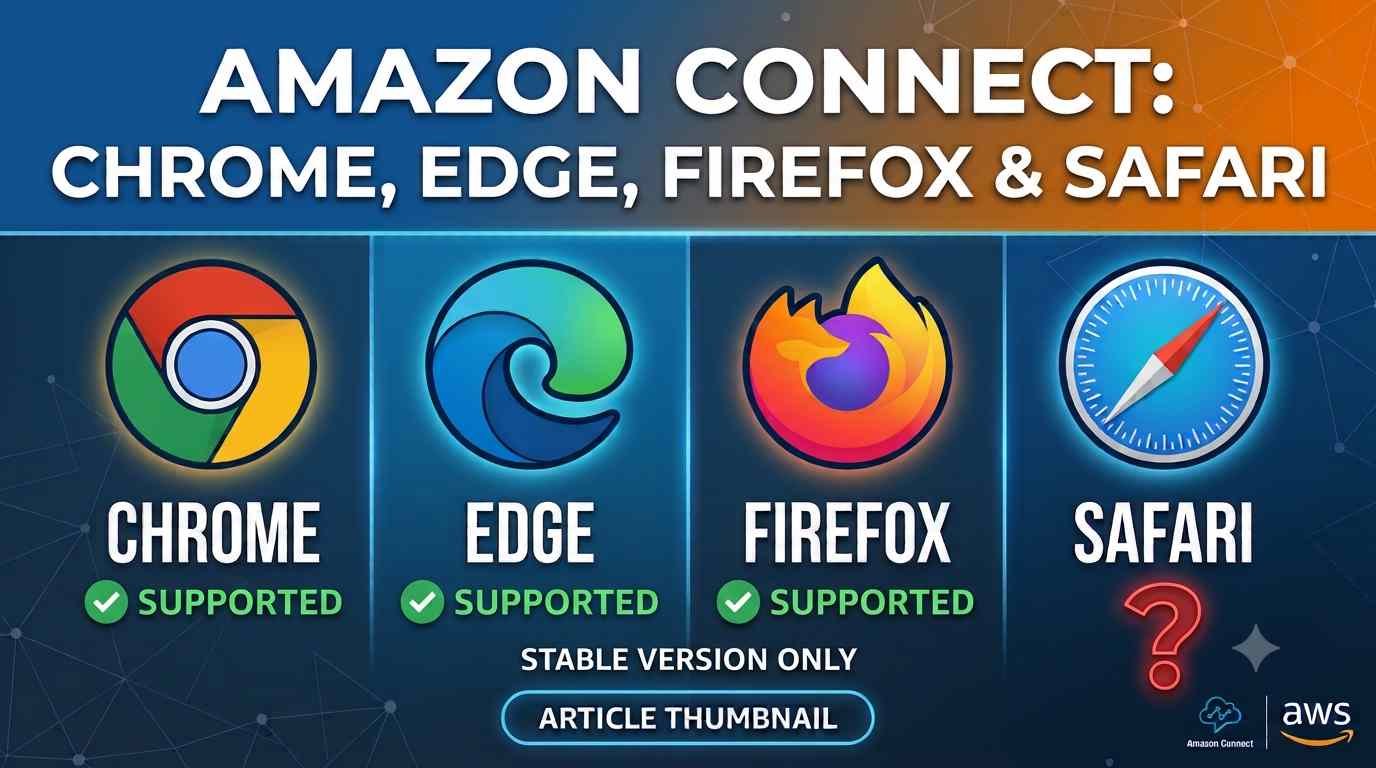
Amazon Connect supports these browsers for the admin console, CCP and agent workspace:
- Google Chrome: latest three versions
- Microsoft Edge (Chromium): latest three versions
- Mozilla Firefox: latest three versions, plus Firefox ESR until its end-of-life date
- Not supported: Safari (for the CCP and agent workspace) and all mobile browsers
Amazon Connect Supported Browsers (2026)
| Browser | Supported versions | How to check your version |
|---|---|---|
| Google Chrome | Latest three versions | Type chrome://version in the address bar |
| Microsoft Edge (Chromium) | Latest three versions | Menu → Help and feedback → About Microsoft Edge |
| Mozilla Firefox | Latest three versions | Menu → Help → About Firefox |
| Mozilla Firefox ESR | Until the ESR version’s end-of-life date | Menu → Help → About Firefox |
| Safari | Not supported for the CCP, agent workspace or console | – |
| Mobile browsers (iOS, Android) | Not supported | – |
AWS only tests the browsers above. Other browsers, such as Safari or enterprise browsers, may work but are not tested. AWS Support may ask you to reproduce a problem in a supported browser before they investigate.
What About Safari?
Safari is not supported for agents using the CCP or agent workspace. Safari is only supported on the customer side, for the hosted communications (chat) widget and the JavaScript SDK.
Can Agents Use Amazon Connect on a Phone or Tablet?
No. The console, CCP and agent workspace do not support mobile browsers. As a workaround, agents can forward the audio of a call to their mobile phone number while they keep the CCP open on a computer.
Browser Settings That Break the CCP
1. Third-party cookies blocked (Chrome, Edge)
Amazon Connect uses third-party cookies to sign agents in. If you embed the CCP in your own app or CRM and an agent has turned off third-party cookies, they will see login loops or authentication errors. Allow third-party cookies for your instance domain.
2. Firefox Enhanced Tracking Protection
Since February 2024, Firefox’s Total Cookie Protection stops the CCP from working when it is embedded in another application. The fix: go to Settings → Privacy & Security → Custom, and set Cookies to Cross-site tracking cookies.
3. Firefox tab focus and the microphone
Firefox only gives the CCP the microphone when the CCP tab is in focus. Agents on Firefox should switch to the CCP tab when they accept a call, or they may miss it or have no audio.
4. Microsoft Edge 146 autoplay policy
Edge 146 changed the AutoplayAllowed enterprise policy. If your IT team set it to Disabled, Edge now blocks all autoplay, including live call audio. Agents hear no ringtone and get one-way audio. The fix is to add your exact instance URL (for example https://your-instance.my.connect.aws) to the AutoplayAllowlist policy. Wildcards are not accepted.
5. Microphone permission
If the agent clicked “Block” when the browser asked for the microphone, calls will connect with no agent audio. Click the padlock icon in the address bar and allow the microphone for the CCP site, then reload.
🛠️ Free tools for this problem
Agent Workstation & Network Test: Test an agent’s browser, microphone and network against Amazon Connect requirements.
CCP Logs Analyzer: Upload CCP logs and find softphone, network and login issues automatically.
Amazon Connect VDI Test: Check Citrix, WorkSpaces and Horizon setups for Amazon Connect audio.
Runs in your browser, with no sign-up. See all free Amazon Connect & AWS tools →
Quick Browser Checklist for Agents
- Use Chrome, Edge or Firefox, one of the latest three versions.
- Allow the microphone for your Amazon Connect site.
- Allow third-party cookies if your CCP is embedded in another app.
- On Firefox, set cookies to “Cross-site tracking cookies” and keep the CCP tab in focus when answering.
- On managed Edge, ask IT to add your instance URL to the autoplay allowlist.
- Run the official Amazon Connect Endpoint Test Utility to confirm WebRTC and network access.
Related Guides
- Amazon Connect Endpoint Test Utility: how to use it
- Fix CSP errors when embedding the CCP
- Amazon Connect agent audio troubleshooting
Frequently Asked Questions
Which browsers does Amazon Connect support?
Amazon Connect supports the latest three versions of Google Chrome, Microsoft Edge (Chromium) and Mozilla Firefox, plus Firefox ESR until its end-of-life date.
Does Amazon Connect work on Safari?
Not for agents. Safari is not supported for the CCP, agent workspace or admin console. It is only supported for the customer-facing chat widget and JavaScript SDK.
Can I use the Amazon Connect CCP on my phone?
No. Mobile browsers are not supported. Agents can forward call audio to a mobile number while keeping the CCP open on a computer.
Why does the CCP keep asking me to log in?
This is usually blocked third-party cookies, especially when the CCP is embedded in another app. Allow third-party cookies for your Amazon Connect domain.
Why do agents on Edge hear no ringtone?
Edge 146 changed the autoplay enterprise policy. Add your exact Amazon Connect instance URL to the AutoplayAllowlist policy.