
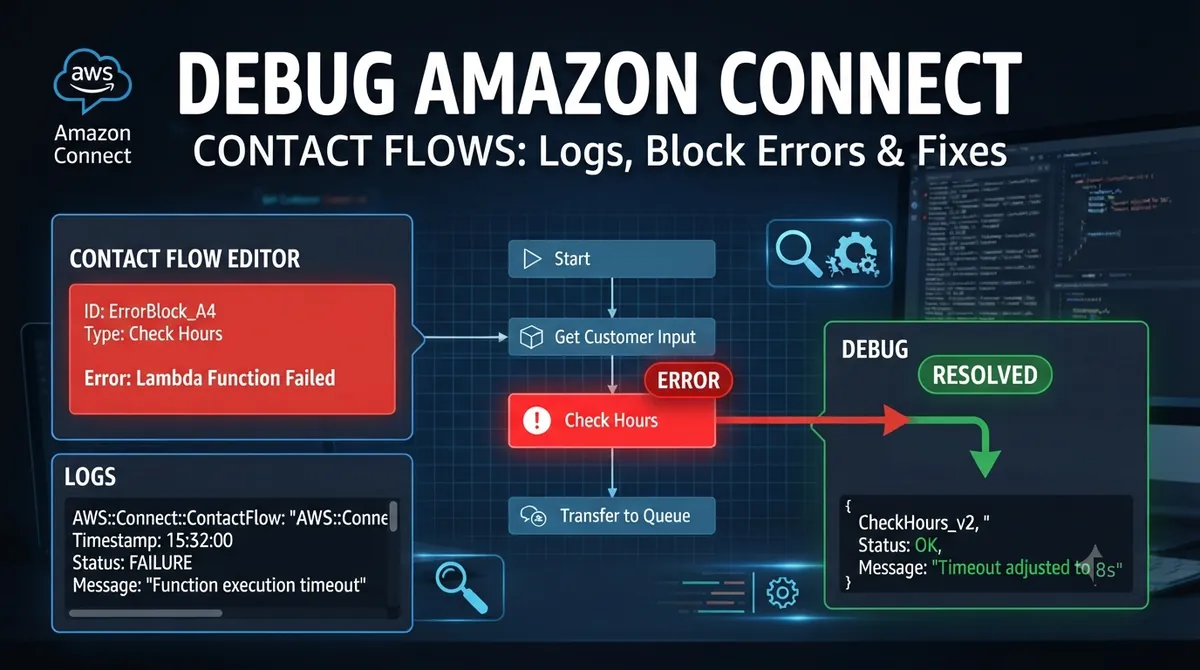
When an Amazon Connect contact flow takes an Error branch, the flow designer does not tell you which block failed or why. To debug an Amazon Connect contact flow, you need flow logs, the right CloudWatch queries, and a clear picture of why each block takes its Error branch. This guide walks through all three, using only AWS-documented behaviour.
Step 1: Turn On Flow Logs (Both Switches)
Flow logs need two settings. Missing either one is the most common reason teams see an empty log group.
| Switch | Where | Notes |
|---|---|---|
| 1. Instance setting | Amazon Connect console → your instance → Flows → Enable Flow logs → Save | Creates the CloudWatch log group automatically |
| 2. Set logging behavior block | Inside each flow you want to log, set to Enable | Logs are generated only for flows with this block enabled. If you add it to a flow that is already published, publish the flow again. |
Or enable the instance setting from AWS CloudShell (replace the instance ID with yours):
aws connect update-instance-attribute \
  --instance-id YOUR-INSTANCE-ID \
  --attribute-type CONTACTFLOW_LOGS \
  --value true
Good to know about flow logs
- Where they go: a CloudWatch log group named
/aws/connect/your-instance-alias, in the same Region as your instance. - They follow the contact: logging set in one flow stays on (or off) for any flow the contact is transferred to, even if that flow has no Set logging behavior block. Add the block to each flow where you want different behaviour.
- One entry per block: a log line is written every time a block runs.
- Cost: generating flow logs is free. You pay normal CloudWatch charges for ingesting and storing them.
- Retention: by default, CloudWatch keeps logs indefinitely. Set a retention period on the log group (from one day to 10 years) so old flow logs are deleted automatically.
- At least once: AWS may deliver the same log entry more than once. Don’t count events without removing duplicates.
- Deleted log group: Connect stops publishing until you re-create the group manually.
- Agent transfers start a new contact: a transfer through a CCP quick connect creates a new contact record, so the transfer destination flow needs its own Set logging behavior block to produce logs.
Step 2: Read a Flow Log Entry
| Field | What it tells you |
|---|---|
ContactId |
Which contact. Use it to follow one call end to end. |
ContactFlowName |
Which flow the block is in. |
ContactFlowModuleType |
The block type, for example InvokeExternalResource (Lambda) or GetUserInput (Get customer input). |
Parameters |
The block settings at run time, for example the Lambda FunctionARN and TimeLimit. |
Results |
What happened, for example “The Lambda Function Returned An Error.” |
Timestamp |
When the block ran. Use it to match Lambda and Lex logs. |
Step 3: Find the Failing Block With CloudWatch Logs Insights
Open CloudWatch → Logs Insights, select /aws/connect/your-instance-alias, and run these queries. Flow logs are JSON, so Logs Insights picks up the fields automatically.
All errors in the selected time range
fields @timestamp, ContactId, ContactFlowName, ContactFlowModuleType, Results
| filter Results like /(?i)error|fail|timeout|exception|invalid|not found/
| sort @timestamp desc
| limit 200
Which flows and blocks fail most
filter Results like /(?i)error|fail|timeout|exception|invalid|not found/
| stats count(*) as errors by ContactFlowName, ContactFlowModuleType
| sort errors desc
Follow one call from start to end
fields @timestamp, ContactFlowName, ContactFlowModuleType, Results
| filter ContactId = "PASTE-CONTACT-ID"
| sort @timestamp asc
The last block before the caller hears an error prompt or the call ends is usually your culprit. Prefer not to write queries? Paste or upload the logs into our free CloudWatch Log Analyzer for Amazon Connect.
Step 4: Know the Two Error Metrics
| CloudWatch metric | Meaning | What to do |
|---|---|---|
ContactFlowErrors |
A block in your flow took its Error branch | Your design or an integration (Lambda, Lex, queue) failed. Use the queries above. |
ContactFlowFatalErrors |
The flow failed to run because of a system error | AWS notes this may be a service issue rather than a problem in your flow. |
Set a CloudWatch alarm on ContactFlowErrors so you hear about problems before customers complain. See our Amazon Connect status guide for alerting on AWS outages.
Step 5: Fix the Most Common Block Errors
Invoke AWS Lambda function block
| What you see in the log | Cause | Fix |
|---|---|---|
AccessDeniedException (403) |
Lambda’s resource policy doesn’t allow Amazon Connect to invoke it | Add the function to your instance in the Connect console (this adds the permission), or run aws lambda add-permission with principal connect.amazonaws.com and your instance ARN as the source. |
| Error branch with no Lambda error | The block timed out. The block timeout can be set up to a maximum of 8 seconds, regardless of the Lambda function’s own timeout. | Check the Lambda Duration metric. Make the function faster, raise the block timeout (up to 8 s), or use an asynchronous Lambda for long work. |
| “The Lambda Function Returned An Error.” | The function threw an error, or its response was rejected | Check the Lambda Errors metric and logs at the same timestamp. If Lambda shows no error, check the response format below. |
| Error, response looks fine | Response type is STRING_MAP but the output is nested | Return a flat object of key-value pairs, or switch the block to JSON response validation (nested JSON is allowed). |
| Error, response looks fine | With STRING_MAP validation, values contain characters other than letters, numbers, dashes and underscores; or the response is 64 KB or larger | Use only letters, numbers, dashes and underscores in values. Keep the response under 64 KB. |
| Error in long chains | Several Lambda calls in a row take too long | Keep the total duration of chained functions to 20 seconds or less. |
More detail: How to Fix AWS Lambda Timeout Errors Triggered by Amazon Connect.
Get customer input block with Amazon Lex
| Check | Why |
|---|---|
| Test the bot on its own in the Amazon Lex console | Tells you whether the problem is the bot or the Connect integration |
| Turn on flow logs and Lex conversation logs | AWS recommends using both to troubleshoot integration issues |
| Add a Set voice block before Get customer input, matching the bot locale (for example en_GB → English, British) | A locale mismatch can stop intents being recognised |
| Check Lex service quotas | AWS lists exceeded resource quotas as a common cause of failures |
Other blocks
- Transfer to queue: check the At capacity branch as well as Error. If the queue already holds its maximum number of contacts, the contact is routed down At capacity.
- Flows imported from another instance: on import, Connect tries to find each resource (queue, prompt, flow) by its ARN. If the ARN is not found, it looks for a resource with the same name. Create the resources with matching names in the target instance first, or replace the ARNs before importing with our Contact Flow ARN Parameterizer.
- Other error words to search for: AWS lists “No prompt provided”, “Unsupported”, “Invalid”, “not found”, “execution limit reached”, “Failed”, “Exception” and “Timeout” as terms to search in flow logs. The queries above already include the most common ones.
Step 6: Test Before You Publish
Amazon Connect has native testing and simulation. You build test cases in a visual designer and run them against your flows. In February 2026 AWS added APIs to configure and run these tests, and in March 2026 it extended testing to chat. The Test and Simulation dashboard shows the test cases and flows with the most failures.
Before you even import a flow, check the exported JSON with our Contact Flow JSON Validator and see the whole flow as a diagram with the Contact Flow Visualizer.
Contact Flow Debugging Checklist
- Instance flow logs enabled.
- Set logging behavior block enabled in the flow, and the flow re-published.
- Note the contact ID and time (UTC) of a failing call.
- Run the “follow one call” query and find the last block before the failure.
- Check that block’s
ResultsandParameters. - Match the timestamp in Lambda or Lex logs.
- Fix, re-test with a simulation or test call, then publish.
- Keep a
ContactFlowErrorsalarm running.
FAQ
Why is my Amazon Connect flow log group empty?
You need both the instance-level “Enable Flow logs” setting and a Set logging behavior block set to Enable in the flow. If you added the block to a published flow, publish it again.
Where are Amazon Connect flow logs stored?
In CloudWatch Logs, in a log group named /aws/connect/your-instance-alias, in the same Region as the instance.
Why does my Lambda block go to Error when the Lambda succeeded?
Usually the block timed out (maximum 8 seconds) or the response format was rejected, for example a nested object with STRING_MAP validation or a response of 64 KB or more.
Are flow logs free?
Generating them is free, but you pay CloudWatch Logs charges for ingestion and storage. CloudWatch keeps logs forever by default, so set a retention period on the log group.
What is the difference between ContactFlowErrors and ContactFlowFatalErrors?
ContactFlowErrors counts Error branches taken in your flows. ContactFlowFatalErrors counts flows that failed to run because of a system error, which may point to a service issue.
Related Guides
- Fix AWS Lambda Timeout Errors Triggered by Amazon Connect
- Fix: AWS Lambda Task Timed Out After 3.00 Seconds
- Amazon Connect Status: How to Check If Amazon Connect Is Down
Sources (AWS documentation)
- Enable flow logs – Amazon Connect Administrator Guide
- Flow logs stored in a CloudWatch log group
- Search flow logs in CloudWatch
- Isolate routing problems using CTRs and flow logs
- Grant Amazon Connect access to Lambda functions
- Monitoring your instance using CloudWatch (metrics)
- AWS What’s New – Testing and simulation APIs (Feb 2026)
- AWS What’s New – Testing and simulation for chat (Mar 2026)