
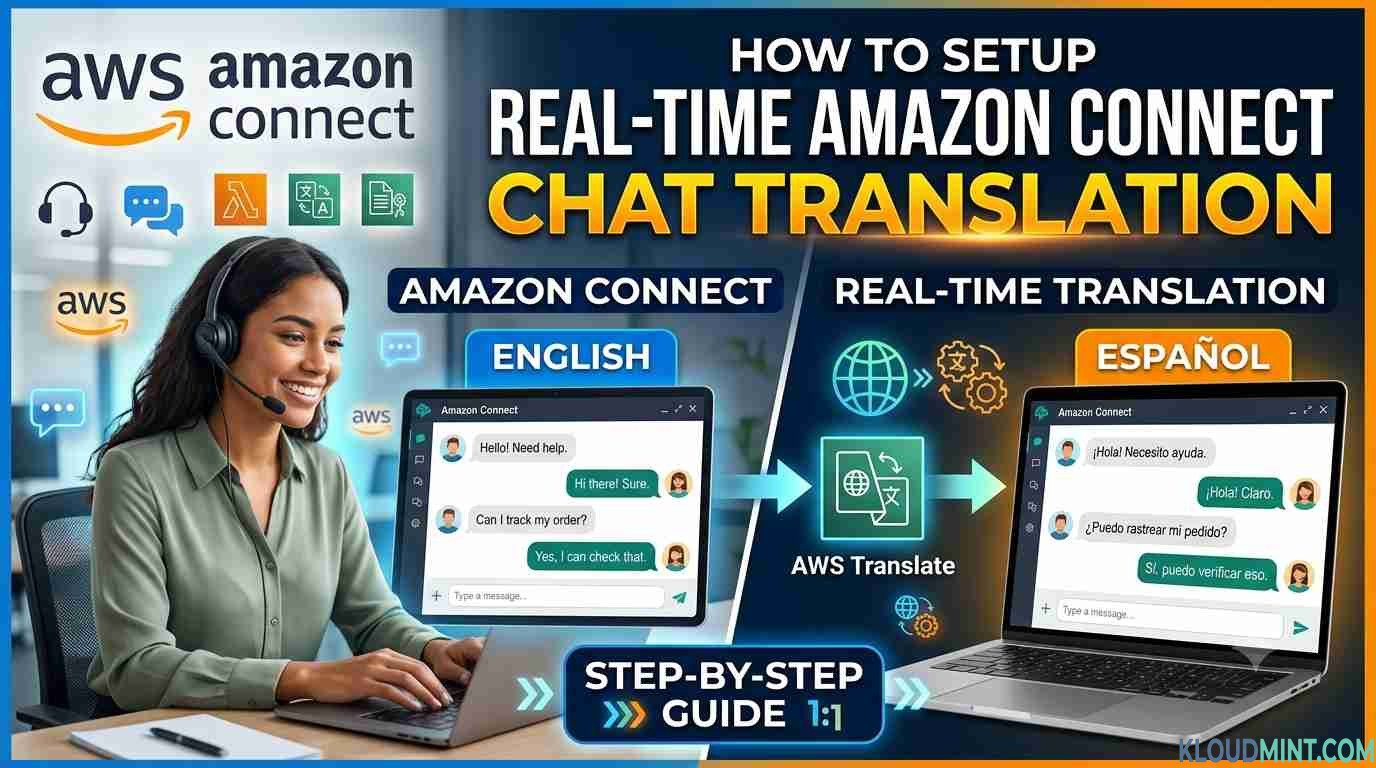
Introduction
Amazon Connect Chat Translation – If your contact center handles customers in more than one language, you already know the usual fix: hire multilingual agents, build language-specific queues, and hope your staffing matches customer demand. It rarely does.
Amazon Connect solves this with chat message processing — a native capability that lets you intercept every chat message, run it through Amazon Translate, and deliver it in the recipient’s preferred language, in real time, without the customer or agent doing anything extra.
In this guide, you’ll learn exactly how to set up automatic chat translation in Amazon Connect, including the architecture, the deployment steps, sample Lambda code, and cost estimates — so any agent can support any customer, in any language.
Why Auto Amazon Connect Chat Translation Matters
Running language-specific queues is expensive and inefficient. It typically causes:
- High operational costs from recruiting and training multilingual agents
- Poor scalability when the business expands into new markets or languages
- Uneven workload distribution, since multilingual agents sit idle in one queue while others overflow
- Longer wait times for customers routed into a language-specific queue
- Wasted agent capacity, because skilled multilingual agents can only serve one language queue at a time
Auto chat translation removes the language constraint entirely. Any agent can be matched to any customer, and translation happens transparently inside the conversation.
What You Get With Amazon Connect Chat Translation
- Real-time, bidirectional translation — customer and agent messages are translated on the fly, in both directions
- Support for dozens of languages, covering European, Asian, Middle Eastern, and Americas languages
- Automatic language detection — no need for the customer to select a language manually
- Sensitive data redaction — PII like card numbers, SSNs, and emails can be stripped during processing
- Custom Lambda logic — you fully control the translation pipeline, formatting, storage, and business rules
How Amazon Connect Chat Translation Works (Architecture Overview)
Amazon Connect’s message processing feature sits between the customer and the agent, intercepting every chat message before it’s delivered.
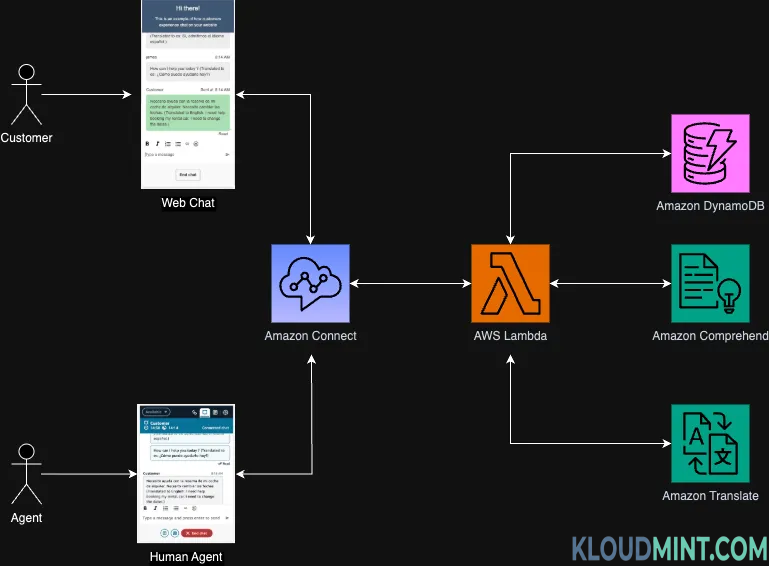
Image credit – AWS Builder
Core AWS Services Used
- Amazon Connect — the contact flow and chat channel
- AWS Lambda — the custom message processor that runs your translation logic
- Amazon Translate — performs the actual neural machine translation
- Amazon Comprehend (optional) — language detection and sentiment analysis
- Amazon DynamoDB (optional) — stores customer language preferences
- Amazon S3 — used by the deployment template and for storing artifacts
The Message Flow, Step by Step
- The customer sends a message in their native language.
- Amazon Connect intercepts the message via the message processor.
- A Lambda function receives the message along with metadata (participant role, contact ID, etc.).
- Lambda detects the source language automatically.
- Amazon Translate converts the message into the agent’s language.
- (Optional) Sensitive data is redacted from the translated text.
- The agent receives the translated message in their own language.
- The agent replies in their language.
- Lambda translates the agent’s reply back into the customer’s language.
- The customer receives the reply in their native language.
- Both the original and translated versions are stored for compliance and QA.
This entire round trip typically completes in under a second, so the conversation feels native to both sides.
Prerequisites
Before you start with Amazon Connect Chat Translation, make sure you have:
- An active Amazon Connect instance with chat enabled
- An AWS account with permissions to create Lambda functions and IAM roles
- Basic familiarity with Amazon Connect contact flows
- Python 3.9+ if you plan to customize the Lambda function
Also check – How to Implement Amazon Q in Connect for Agent Assist: Step-by-Step Guide
Step-by-Step: How to Set Up Auto Amazon Connect Chat Translation
Step 1: Deploy the CloudFormation Template
Start by deploying a CloudFormation template that provisions the two core resources you need: a DynamoDB table (for storing language preferences, optional) and the Lambda function that will act as your message processor. If your use case needs custom logic — say, industry-specific terminology or extra redaction rules — update the Lambda code inside the template before deploying the stack.
AWSTemplateFormatVersion: '2010-09-09'
Description: 'Lambda function (Python) for Amazon Connect chat translation with Comprehend and Translate'

Resources:
  ContactLanguageTable:
    Type: AWS::DynamoDB::Table
    Properties:
      TableName: !Sub '${AWS::StackName}-contact-languages'
      AttributeDefinitions:
        - AttributeName: contactId
          AttributeType: S
      KeySchema:
        - AttributeName: contactId
          KeyType: HASH
      BillingMode: PAY_PER_REQUEST

  LambdaExecutionRole:
    Type: AWS::IAM::Role
    Properties:
      AssumeRolePolicyDocument:
        Version: '2012-10-17'
        Statement:
          - Effect: Allow
            Principal:
              Service: lambda.amazonaws.com
            Action: sts:AssumeRole
      ManagedPolicyArns:
        - arn:aws:iam::aws:policy/service-role/AWSLambdaBasicExecutionRole
      Policies:
        - PolicyName: ComprehendTranslateDynamoPolicy
          PolicyDocument:
            Version: '2012-10-17'
            Statement:
              - Effect: Allow
                Action:
                  - comprehend:DetectDominantLanguage
                  - translate:TranslateText
                Resource: '*'
              - Effect: Allow
                Action:
                  - dynamodb:PutItem
                  - dynamodb:GetItem
                Resource: !GetAtt ContactLanguageTable.Arn

  ChatTranslatorFunction:
    Type: AWS::Lambda::Function
    Properties:
      FunctionName: !Sub '${AWS::StackName}-translator'
      Runtime: python3.13
      Handler: index.lambda_handler
      Role: !GetAtt LambdaExecutionRole.Arn
      Timeout: 30
      Environment:
        Variables:
          TABLE_NAME: !Ref ContactLanguageTable
      Code:
        ZipFile: |
          import os
          import boto3

          comprehend = boto3.client('comprehend')
          translate = boto3.client('translate')
          dynamodb = boto3.client('dynamodb')

          table_name = os.environ['TABLE_NAME']


          def lambda_handler(event, context):
              chat_content = event['chatContent']
              participant_role = chat_content['participantRole']
              content = chat_content['content']
              contact_id = chat_content['contactId']

              try:
                  if participant_role == 'CUSTOMER':
                      language_result = comprehend.detect_dominant_language(Text=content)
                      dominant_language = language_result['Languages'][0]

                      final_content = content

                      if dominant_language['LanguageCode'] != 'en' and dominant_language['Score'] > 0.5:
                          dynamodb.put_item(
                              TableName=table_name,
                              Item={
                                  'contactId': {'S': contact_id},
                                  'language': {'S': dominant_language['LanguageCode']}
                              }
                          )

                          translate_result = translate.translate_text(
                              Text=content,
                              SourceLanguageCode=dominant_language['LanguageCode'],
                              TargetLanguageCode='en'
                          )
                          final_content = f"{content} (Translated to English: {translate_result['TranslatedText']})"

                      return {
                          'status': 'PROCESSED',
                          'result': {
                              'processedChatContent': {
                                  'content': final_content,
                                  'contentType': 'text/plain'
                              }
                          }
                      }
                  else:
                      result = dynamodb.get_item(
                          TableName=table_name,
                          Key={'contactId': {'S': contact_id}}
                      )

                      final_content = content

                      if 'Item' in result and 'language' in result['Item']:
                          customer_language = result['Item']['language']['S']
                          if customer_language != 'en':
                              translate_result = translate.translate_text(
                                  Text=content,
                                  SourceLanguageCode='en',
                                  TargetLanguageCode=customer_language
                              )
                              final_content = f"{content} (Translated to {customer_language}: {translate_result['TranslatedText']})"

                      return {
                          'status': 'PROCESSED',
                          'result': {
                              'processedChatContent': {
                                  'content': final_content,
                                  'contentType': 'text/plain'
                              }
                          }
                      }

              except Exception as error:
                  print(f'Error processing content: {error}')
                  return {
                      'status': 'FAILED',
                      'result': {
                          'processedChatContent': {
                              'content': content,
                              'contentType': 'text/plain'
                          }
                      }
                  }

Outputs:
  LambdaFunctionArn:
    Description: 'ARN of the Lambda function'
    Value: !GetAtt ChatTranslatorFunction.Arn
    Export:
      Name: !Sub '${AWS::StackName}-LambdaArn'
Step 2: Validate the Deployment
Once the stack finishes deploying, check the CloudFormation console to confirm all resources were created successfully — the Lambda function, IAM role, and (if used) the DynamoDB table.
Step 3: Associate the Lambda Function With Amazon Connect
In your Amazon Connect instance settings, associate the newly created “Custom Processor” Lambda function with your instance. This step grants Amazon Connect permission to invoke the function during chat sessions.
Step 4: Configure Your Contact Flow
Open your chat contact flow in Flow Designer (or import a sample flow). You’ll be working with the “Set recording and analytics and processing behavior” block, which controls how messages are intercepted and processed.
Step 5: Enable the Message Processor
Inside that block:
- From the actions dropdown, choose “Set message processor.”
- For Channel, select Chat.
- For Function ARN, choose the Lambda function you associated in Step 3.
Save and publish the flow.
Step 6: Test the Translation End-to-End
Use the Amazon Connect test chat interface to verify everything works:
- Send a message in a non-English language — for example, “Hola, necesito ayuda”.
- Confirm the agent sees the translated version — “Hello, I need help”.
- Have the agent reply in English — “How can I assist you?”.
- Confirm the customer sees the translated reply in their own language.
- Check CloudWatch Logs for translation details, latency, and any errors.
If everything checks out, you now have live, automatic chat translation running in production.
Step-by-Step: How to Set Up Auto Amazon Connect Chat Translation
VIDEO – How to Set Up Auto Amazon Connect Chat Translation
Optional Enhancements You Can Add Later for Amazon Connect Chat Translation
Note: The following features are optional add-ons and are not part of the base template in this guide. The default deployment simply detects the customer’s language, translates messages in both directions, and stores the language preference. If you want to extend the Lambda later, these are common upgrades — but you can skip this section entirely and the solution will work fine.
1. Sensitive Data Redaction During Translation (optional)
You can chain PII redaction into the translation pipeline so that credit card numbers, Social Security numbers, and email addresses are stripped out of the text before it reaches the agent or gets stored.
python
import re

def redact_sensitive_data(text):
    """Redact credit cards, SSN, and email from text."""
    text = re.sub(r'\b\d{4}[\s-]?\d{4}[\s-]?\d{4}[\s-]?\d{4}\b', '[CREDIT_CARD]', text)
    text = re.sub(r'\b\d{3}-\d{2}-\d{4}\b', '[SSN]', text)
    text = re.sub(r'\b[A-Za-z0-9._%+-]+@[A-Za-z0-9.-]+\.[A-Za-z]{2,}\b', '[EMAIL]', text)
    return text
2. Professional Message Formatting With an LLM (optional)
You can layer a large language model (for example, a Claude model on Amazon Bedrock) on top of the translated text to polish tone and phrasing before it reaches the customer — useful when agents type quickly and informally.
python
import json
import boto3

bedrock = boto3.client('bedrock-runtime')


def format_professionally(text, target_language):
    """Format agent response professionally using LLM"""
    prompt = f"""Rewrite the following customer service message to be more professional
and courteous while maintaining the same meaning. Keep it concise.

Message: {text}
Target language: {target_language}

Professional version:"""

    response = bedrock.invoke_model(
        modelId='anthropic.claude-3-sonnet-20240229-v1:0',
        body=json.dumps({
            "anthropic_version": "bedrock-2023-05-31",
            "max_tokens": 200,
            "messages": [{
                "role": "user",
                "content": prompt
            }]
        })
    )

    result = json.loads(response['body'].read())
    return result['content'][0]['text']
3. Storing Richer Language Preferences (optional)
The base template already stores a contactId → language mapping. If you want a persistent, per-customer preference (so returning customers skip auto-detection), you can extend DynamoDB with a customerId-keyed table and look it up at the start of each session.
python
import boto3
from datetime import datetime

dynamodb = boto3.resource('dynamodb')
table = dynamodb.Table('CustomerLanguagePreferences')


def get_customer_language(customer_id):
    """Retrieve stored language preference"""
    try:
        response = table.get_item(Key={'customerId': customer_id})
        return response.get('Item', {}).get('language', 'auto')
    except Exception:
        return 'auto'


def save_customer_language(customer_id, language):
    """Store language preference for future interactions"""
    table.put_item(Item={
        'customerId': customer_id,
        'language': language,
        'lastUpdated': datetime.now().isoformat()
    })
Best Practices for Amazon Connect Chat Translation
Translation Quality
- Amazon Translate uses neural machine translation, which handles idioms and context better than older statistical models — but you should still spot-check output regularly.
- Upload custom terminology for product names, brand terms, and technical jargon so they’re translated consistently.
- Configure formality settings to match your brand voice (formal vs. informal).
- Periodically review translated transcripts and refine your custom terminology list.
Performance
- Allocate around 512 MB of memory to the Lambda function for a good balance of speed and cost.
- Cache language-detection results for repeat customers to cut latency and Translate API calls.
- For long messages, consider async processing with a progress indicator rather than blocking the chat.
- Always build in a fallback to the original message if translation fails, rather than dropping the message.
- Set up CloudWatch alarms on Lambda errors and elevated latency so issues surface immediately.
Agent Enablement
- Walk agents through exactly what they’ll see and how translation works before go-live.
- Train agents to write short, simple sentences — they translate more reliably than long, idiomatic ones.
- Document an escalation path for cases where translation causes confusion.
- Collect and act on agent and customer feedback about translation quality.
Also check – Fix Amazon S3 Permission Denied Errors for Connect Call Recordings
How Much Does Amazon Connect Chat Translation Cost?
Amazon Translate is priced per character, which makes this one of the cheapest ways to add multilingual support to a contact center:
- Amazon Translate pricing: roughly $15 per million characters
- Average chat message volume: ~500 characters ≈ $0.0075 per chat
- At 100,000 chats/month: roughly $750/month in translation costs
- Compare that to: $50,000+/month for a dedicated multilingual agent team
Even after accounting for Lambda invocations and optional DynamoDB usage, the total cost is a small fraction of what it costs to staff and maintain language-specific queues.
Metrics to Monitor After Launch
Once live, track these KPIs to make sure the solution is performing well:
| Metric | Target |
|---|---|
| Translation latency | Under 1 second per message |
| Translation success rate | Above 99% |
| Language distribution | Track most-used languages |
| Agent satisfaction | Survey regularly |
| Customer satisfaction (CSAT) | Compare across languages |
| Cost per conversation | Monitor monthly translation spend |
| Error rate | Track Lambda/API failures |
Cleaning Up a Test Deployment
If you deployed this in a sandbox or test environment:
- Delete the CloudFormation stack.
- Delete the contact flow you created for testing.
Production note: In a live environment, follow your organization’s data retention and compliance policies before deleting any resources, and make sure translated transcripts are archived appropriately first.
Frequently Asked Questions
Does Amazon Connect support real-time chat translation out of the box? Not by default — you enable it by attaching a Lambda-based message processor to your chat flow, which calls Amazon Translate behind the scenes.
How many languages does Amazon Connect chat translation support? Amazon Translate supports dozens of languages across European, Asian, Middle Eastern, and Americas language groups, so most global support use cases are covered.
Do agents need any special training to use translated chat? No special software skills are required, but agents should be briefed on how translation works, since occasional phrasing nuances can appear in machine-translated text.
Can I redact sensitive data like credit card numbers during translation? Yes — you can add redaction logic directly inside the same Lambda function that handles translation, so PII never reaches the agent in plain text.
How much does it cost to add auto chat translation to Amazon Connect? At Amazon Translate’s per-character pricing, a typical chat costs a fraction of a cent to translate — usually well under $1,000/month even at high volume, compared to tens of thousands per month for multilingual staffing.
Conclusion
Setting up auto chat translation in Amazon Connect turns every agent into a multilingual agent. Instead of building and maintaining language-specific queues, you deploy one Lambda-based message processor, attach it to your chat flow, and let Amazon Translate handle the rest — in real time, in both directions, with built-in options for redaction and custom formatting.
The result: shorter wait times, better agent utilization, faster expansion into new markets, and a fraction of the cost of hiring multilingual staff.
Reference: This guide is based on the architecture and deployment steps described in the AWS Contact Center blog post “Breaking Language Barriers: Real-Time Multilingual Support with Amazon Connect Chat Message Processing.”