
Amazon Connect AI Agent Content Segmentation
Amazon Connect AI Agent Content Segmentation enables you to filter knowledge base content based on contact context, ensuring AI Agents provide the most relevant information for each interaction. By leveraging the Retrieve tool’s Override Input Values at runtime, administrators can limit AI searches using predefined tags or metadata, which improves response accuracy and routes queries to department-specific content.
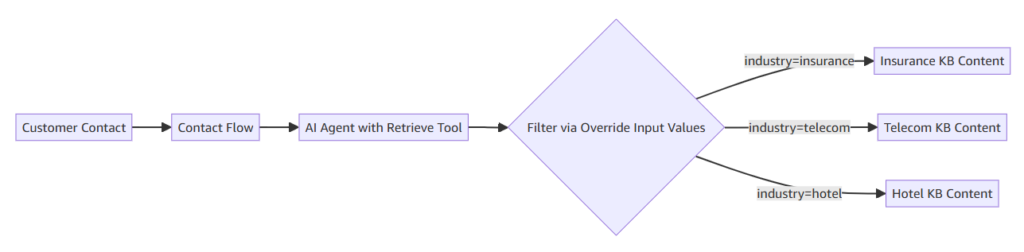
Keeping your cloud infrastructure in mint condition requires precision, especially when automating customer interactions. When a single knowledge base serves multiple industries or departments, an AI Agent will search across all content, including irrelevant documents. Amazon Connect AI Agent Content Segmentation solves this problem by using tags to scope exactly which documents the Retrieve tool can access during a session.
Here is a deep dive into configuring this essential feature to troubleshoot inaccurate AI responses and optimize your contact flows.
Why Implement Content Segmentation?
Applying robust content segmentation strategies yields immediate benefits for your contact center operations:
- Improve response accuracy: You can filter content to match the customer’s specific context.
- Reduce irrelevant suggestions: You can limit recommendations to applicable documents.
- Support multi-department scenarios: You can route queries to department-specific content.
- Enhance customer satisfaction: You can deliver precise, relevant information faster.
Note: Content segmentation is not available with the Connect-managed Web crawler data source type. Furthermore, for orchestration agents, content filtering is done exclusively through the Retrieve tool’s Override Input Values. The older approach of passing a tagFilter via the UpdateSession API does not apply to orchestration agents.
Step 1: Tagging Your Knowledge Base Content
The tagging and filtering process differs depending on your knowledge base type. Both approaches ultimately use the exact same Retrieve tool Override Input Values configuration within the AI Agent designer.
Option A: Connect-Managed Knowledge Bases
For knowledge bases managed by Connect (such as S3, Salesforce, SharePoint, Zendesk, and ServiceNow), content is ingested as Connect resources.
- You must tag individual content items using the
TagResourceAPI after ingestion. - You can find your specific content IDs using the
ListContentscommand. - A best practice is to organize your S3 content into prefixes by industry (e.g.,
insurance/,telecom/) and tag each content resource with the matching industry key.
First, find your knowledge base ID:
aws qconnect list-knowledge-bases --region <your_region>List Content in a Knowledge Base
Apply tags to each content resource using the tag-resource command. For example, to tag content for the insurance industry:
aws qconnect list-contents \
  --knowledge-base-id <kb_id> \
  --region <your_region>
For telecom content:
aws qconnect tag-resource \
  --resource-arn arn:aws:wisdom:us-west-2:<account_id>:content/<kb-id>/<content-id> \
  --tags industry=telecom \
  --region <your_region>
Verify your Tags
aws qconnect list-tags-for-resource \
  --resource-arn <content-arn> \
  --region <your_region>
Option B: Bedrock Knowledge Bases (BYO-KB)
For Bedrock Knowledge Bases associated to Connect, content is not stored as Connect resources, meaning the TagResource API is unavailable.
- Instead, you define metadata fields directly on your data sources at ingestion time.
- For S3-backed Bedrock KBs, you can attach metadata to each document using a
companion.metadata.jsonfile. - Bedrock KBs automatically provide built-in metadata fields on all files, allowing you to filter by data source ID using the key
x-amz-bedrock-kb-data-source-id. - Bedrock KBs support advanced filter operators beyond simple equals, including
startsWith,greaterThan,lessThan,andAll, andorAll.
Also Check – How to Implement Amazon Q in Connect for Agent Assist ?
Step 2: Configure the Retrieve Tool Filter
Once your content is tagged, you must configure the Retrieve tool in the Amazon Connect AI Agent designer.
- Navigate to the Amazon Connect console, access the AI agent designer, and select AI Agents.
- Select your AI Agent and click Edit in Agent Builder.
- Select the Retrieve tool and scroll to the Override Input Values section at the bottom.
- Add your override entries. For example, set the Property Key to
retrievalConfiguration.filter.equals.keyand the Override Value toindustry. - Set the second Property Key to
retrievalConfiguration.filter.equals.valueand the Override Value toinsurance.
In this static example, the Retrieve tool will only return content tagged matching industry=insurance.
| Property Key | Override Value |
|---|---|
retrievalConfiguration.filter.equals.key | industry |
retrievalConfiguration.filter.equals.value | insurance |
Step 2.1: (Optional) Making Filter Values Dynamic via AWS Lambda
To scale effectively, your filter values should change per contact dynamically. You can achieve this using $.Custom.* placeholders in the override value instead of hardcoding it.
For example, setting the override value to {{\$.Custom.industry}} allows the placeholder to resolve at runtime from session data. To inject this data, use an AWS Lambda function in your Contact Flow to call the UpdateSessionData API before the AI Agent is invoked.
Example Contact Flow Execution:
- Add an “Invoke AWS Lambda function” block before the AI Agent is invoked.
- Under Function input parameters, pass a key (e.g.,
industry) dynamically based on your business logic, such as a dialed phone number or customer profile attribute. - The Lambda function extracts the
assistant_idandsession_idfrom the contact’sWisdomInfo. - The Lambda calls
qconnect_client.update_session_data()passing thenamespace='Custom'and the dynamic data payload.
| Property Key | Override Value |
|---|---|
retrievalConfiguration.filter.equals.key | industry |
retrievalConfiguration.filter.equals.value | {{$.Custom.industry}} |
Example Lambda Function
import boto3
import json

def lambda_handler(event, context):
    contact_data = event['Details']['ContactData']

    # The industry to filter on - could come from contact attributes,
    # a database lookup, or be passed as a parameter
    industry = event['Details']['Parameters'].get('industry', 'default')

    # Extract session info from the contact
    connect_client = boto3.client('connect')
    contact = connect_client.describe_contact(
        InstanceId=contact_data['InstanceARN'].split('/')[-1],
        ContactId=contact_data['ContactId']
    )['Contact']

    session_arn = contact['WisdomInfo']['SessionArn']
    assistant_id = session_arn.split('/')[1]
    session_id = session_arn.split('/')[3]

    # Update session data with the industry tag
    qconnect_client = boto3.client('qconnect')
    qconnect_client.update_session_data(
        assistantId=assistant_id,
        sessionId=session_id,
        namespace='Custom',
        data={
            'industry': industry
        }
    )

    return {
        "statusCode": 200,
        "body": json.dumps({"message": f"Session updated with industry={industry}"})
    }
Contact Flow Configuration for Dynamic Filtering
Contact Flow Configuration for Dynamic Filtering
- Add an Invoke AWS Lambda function block in your Contact Flow
- Select the Lambda function you created above
- Under Function input parameters, add a key
industrywith the appropriate value (e.g.,insurance,telecom,hotel) - Place this block before the AI Agent is invoked in the flow
Dynamic Value Sources
The industry parameter can be set dynamically based on your business logic – for example, derived from the dialed phone number, a customer profile attribute, or a menu selection in the IVR. Pass it to the Lambda as a Contact Flow parameter.
Step 3: Select the AI Agent in Your Contact Flow
After configuring the Retrieve tool with your desired override values, the next essential step is specifying which AI Agent to use within your Amazon Connect Contact Flow. This must be the exact agent you configured with the Override Input Values in the previous step.
- Add the appropriate AI Agent block within your Contact Flow architecture.
- Select the specific AI Agent you just configured to handle the interaction.
Testing Content Segmentation End-to-End
Once your configuration is complete, you must rigorously test the setup using different filter values to ensure the segmentation works exactly as intended.
Scenario Testing: Suppose your knowledge base contains internet troubleshooting articles tagged with industry=telecom, but no such articles are tagged with industry=insurance.
- Test 1 (Negative Control): Set the Retrieve tool override value (or your dynamic Lambda input) to
insuranceand ask, “How do I troubleshoot my internet connection?”. The AI Agent should correctly indicate it lacks relevant information because the insurance-tagged content does not include those articles. - Test 2 (Positive Control): Change the override value to
telecomand ask the exact same question. The agent should successfully return the helpful internet troubleshooting steps. This confirms your Retrieve tool is filtering accurately based on the tag overrides.
Monitor and Verify: Always verify your tag filtering via the AWS CLI using the aws qconnect list-tags-for-resource command. Additionally, monitor your AI Agent logs in Amazon CloudWatch to confirm that session updates and tag filters are successfully being applied at runtime.
aws qconnect list-tags-for-resource \
  --resource-arn <content-arn> \
  --region <your_region>>
Alternative Architecture: Multiple Retrieve Tools
Instead of relying solely on tag-based filtering, or in conjunction with it, you can configure multiple Retrieve tools on a single Amazon Connect AI Agent. In this setup, each Retrieve tool points to an entirely different knowledge base (e.g., RetrieveInsuranceDocs, RetrieveTelecomDocs, RetrieveHotelDocs) .
When utilizing multiple Retrieve tools, you can configure the AI Agent’s behavior in two primary ways:
- Parallel Invocation: The AI Agent queries all connected knowledge bases simultaneously for every user request. To enforce this, add a prompt rule stating: “When multiple Retrieve-type tools are available, you MUST invoke ALL of them simultaneously for any search request.”.
- Conditional Invocation: The AI Agent intelligently selects the appropriate knowledge base based entirely on the user’s question context. For this to work effectively, you must provide distinct instructions for each Retrieve tool detailing when it should be used, alongside a strict prompt rule stating: “You have multiple Retrieve tools… Select only ONE tool per question based on the topic.”.
Also Check – How to Fix “Failed to Get Email Message” in Amazon Connect (S3 CORS Policy)
Final Best Practices and Versioning – Amazon Connect AI Agent Content Segmentation
Enterprise cloud architects often combine these approaches. You can deploy multiple Retrieve tools for broad content separation across different knowledge bases, while utilizing tag-based filtering within those individual knowledge bases for hyper-granular control. You can also inject industry-specific context into the AI Agent’s prompt to conditionally alter system instructions or compliance rules based on the session’s industry value.
Crucial Versioning Reminder: After publishing any changes to your AI Agent, AWS Lambda function, or Contact Flow, you must always ensure that your Contact Flow is pointed to the latest published version of each resource. Proper Amazon Connect AI Agent content segmentation is the key to delivering highly relevant, context-aware responses and significantly improving accuracy across diverse business units.
Source – AWS Workshop
Conclusion
By mastering Amazon Connect AI Agent Content Segmentation, you can significantly improve response accuracy for organizations with diverse content needs. Always ensure you publish your AI Agent and update your Contact Flow to point to the latest published version after making any changes.
Content segmentation is a game-changer for AI-driven customer support. By delivering precise, relevant information, it transforms the way businesses interact with their customers. Whether you’re managing multiple industries or handling complex queries, this approach ensures that your AI agents always deliver the right answer at the right time.
FAQs about Amazon Connect AI Agent Content Segmentation
1. What is content segmentation in Amazon Connect?
Content segmentation is a method of filtering knowledge base content based on customer context to deliver more relevant responses.
2. How does tagging work in AI agents?
Tagging involves assigning key-value pairs to content, allowing the system to filter and retrieve relevant information.
3. Can content segmentation be dynamic?
Yes, dynamic filtering uses session data and Lambda functions to adjust filtering criteria in real time.
4. What are the benefits of using multiple knowledge bases?
They allow better organization, improved accuracy, and more efficient content retrieval.
5. Is content segmentation supported for all data sources?
No, some data sources like web crawlers may not support content segmentation.