
Amazon Connect Email turned the classic “voice and chat” contact center into a true omnichannel platform. Since going generally available in November 2024, it has become one of the most requested channels for support teams that want to triage, route, and respond to customer emails with the same rules engine they already use for calls and chats.
This guide covers everything you need on one page:
- What Amazon Connect Email is and how it actually works under the hood
- A complete, step-by-step setup walkthrough (Amazon SES + Amazon Connect)
- The exact causes — and fixes — for the most common Amazon Connect email channel routing issues, including “can’t send,” “can’t receive,” emails stuck in queue, and email loops
Whether you’re an AWS contact center administrator, a Amazon Connect partner, or a developer debugging a broken email flow at 2 a.m., bookmark this page.
What Is Amazon Connect Email? {#what-is-amazon-connect-email}
Amazon Connect Email is a native channel inside Amazon Connect — AWS’s cloud contact center platform — that lets businesses receive, prioritize, route, and respond to customer emails using the exact same configuration, routing engine, analytics, and agent workspace that already power voice, chat, SMS, tasks, and web calling.
It became generally available on November 22, 2024, and it’s built to solve a very specific problem: most contact centers were running voice/chat in Amazon Connect while emails piled up in a completely separate mailbox or helpdesk tool, with no shared routing logic, no unified reporting, and no single agent desktop.
With Amazon Connect Email, you can:
- Configure an inbound email address using the Amazon Connect–provided domain (
instance-alias.email.connect.aws) or bring your own custom domain via Amazon SES - Automatically route inbound emails to the best available agent, using skills-based routing, queues, and priorities — identical to voice and chat
- Trigger auto-responses and acknowledgment emails the moment a customer’s message arrives
- Create or update cases directly from an email contact
- Send proactive, personalized outbound email through Amazon Connect outbound campaigns
- Give agents a single workspace to handle voice, chat, tasks, and email side-by-side
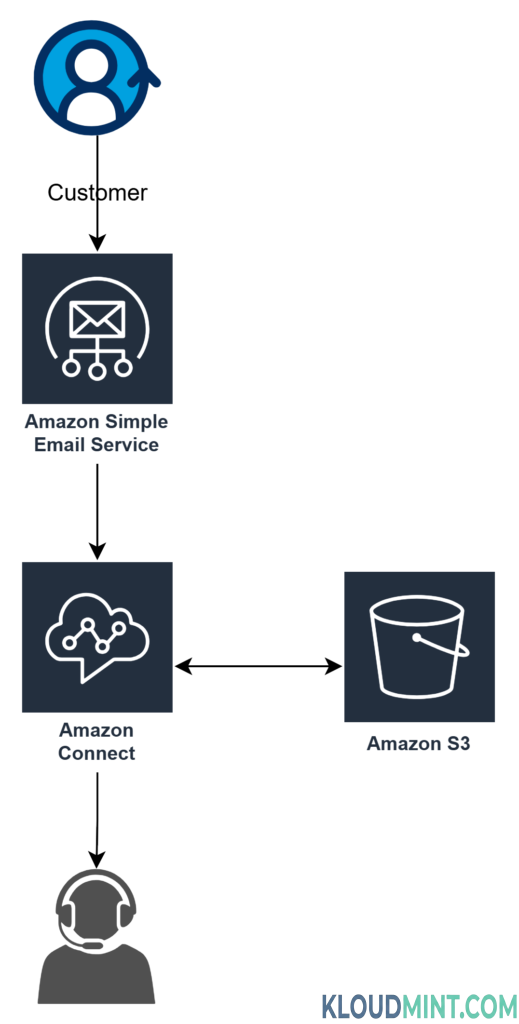
Under the hood, Amazon Connect Email is powered by Amazon Simple Email Service (Amazon SES), which handles the actual sending, receiving, spam/virus scanning, delivery tracking, and sender reputation monitoring.
How Amazon Connect Email Works {#how-amazon-connect-email-works}
Understanding the underlying architecture is the single best way to troubleshoot routing problems later — most “broken email” tickets trace back to a gap in one of the steps below.
1. How Inbound Emails Are Received
There are three methods by which Amazon Connect can receive an email:
| Method | Description |
|---|---|
| Method 1 — Connect-managed address | A customer emails an address you created inside Amazon Connect, using either the auto-generated @instance-alias.email.connect.aws domain or a custom domain verified in Amazon SES. |
| Method 2 — Mail routing rule | Your existing email server (Microsoft 365 connectors, Google Workspace mail routing rules, etc.) forwards inbound mail to an Amazon SES SMTP endpoint on a domain you’ve verified in SES. |
| Method 3 — StartEmailContact API | A web form on your site or mobile app calls the StartEmailContact API directly, functioning similarly to StartTaskContact, without an actual email ever being sent. |
Every inbound method ultimately lands on the StartEmailContact API, which requires either:
- At least one email address from your Amazon Connect instance in the To or CC field, or
- An inbound flow defined on the instance to route the contact
If both conditions are present, Amazon Connect prioritizes the inbound flow. If multiple Connect email addresses appear in To/CC, multiple separate contacts are created — one per address.
2. Every Email Message = One Unique Contact
Unlike a chat session or a phone call, each individual email message is its own contact in Amazon Connect, with its own Contact ID, state (CREATED, QUEUED, CONNECTED, ENDED, etc.), and metadata (From, To, CC, Subject, attachments). Amazon Connect stitches related messages together into a coherent email thread using the relatedContactId field and RFC 5256-compliant email headers — the same threading standard used by Gmail, Outlook, and Apple Mail.
3. Where Email Content Actually Lives
Amazon Connect doesn’t store the email body and attachments in the contact record itself — it stores pointers. The actual message content and attachments live in an Amazon S3 bucket that you configure during setup. The agent workspace fetches the content from S3 at render time, which is exactly why S3 permissions and CORS configuration are a top cause of email channel failures (more on that below).
4. How Outbound Email Is Sent
Every outbound email — whether it’s an agent reply, an agent-initiated new email, or an automated flow response — goes through the StartOutboundEmailContact API, which sends the message to Amazon SES, and SES delivers it to the customer. This API requires an email address in the To/CC fields and an outbound whisper flow to process the contact.
5. Email Loop Protection
Two things can cause an email to boomerang back into your contact center:
- Self-addressed loops (agent’s reply CC’s the same queue address back to itself) — Amazon Connect automatically blocks this; you can’t turn it off, and you don’t need to build anything for it.
- Automated response loops — bounce/NDR messages and out-of-office auto-replies are not automatically detected. If your flow sends an automated acknowledgment and that triggers a bounce or an OOO reply, your instance can re-ingest it as a brand-new inbound contact and loop forever. You have to build this filter yourself (we cover the fix in the troubleshooting section).
Amazon Connect Email vs. Traditional Ticketing {#amazon-connect-email-vs-traditional-ticketing}
The biggest differentiator isn’t features — it’s unification. A traditional email/ticketing tool lives outside your contact center’s routing and reporting. Amazon Connect Email uses:
- The same queues, routing profiles, and skills-based routing as voice and chat
- The same contact flows (with the Send Message and Check Contact Attributes blocks)
- The same real-time and historical analytics dashboards
- The same agent workspace, so agents don’t context-switch between tools
If your team is already standardized on Amazon Connect for voice or chat, adding email closes the loop on true omnichannel service without bolting on a third-party helpdesk.
Step-by-Step: How to Set Up Amazon Connect Email {#how-to-set-up-amazon-connect-email}
Follow this order exactly — skipping a step (especially S3/CORS) is the #1 cause of a “working” setup that silently fails.
Step 1: Move Amazon SES Out of Sandbox Mode
Amazon Connect uses Amazon SES to send and receive every email. If your AWS account’s SES is new, it’s in sandbox mode, which severely restricts sending (verified recipients only) and will make your email channel look broken even though it’s configured correctly. Request production access before doing anything else.
Step 2: Get Your Default Amazon Connect Email Domain
- In the Amazon Connect console, open Email in the left navigation and choose Create service role. This is a one-time step per account — it allows Amazon SES to route emails into Amazon Connect.
- Choose Add Domain.
- Select Amazon Connect email domain. This auto-generates a domain in the format
instance-alias.email.connect.aws— you can’t customize it, but it’s perfect for testing or for forwarding from an existing address (e.g.,support@example.com→support@example.email.connect.aws).
Step 3 (Optional): Add Your Own Custom Domain
You can onboard up to five custom domains, as long as each one is already verified in Amazon SES with DKIM. In the Email section, choose Add Domain → Use custom email domain, then select from the dropdown of SES-verified domains.
Step 4: Enable Email and Create an S3 Bucket
This is the step most admins under-configure. Amazon Connect requires an S3 bucket to store email messages, and optionally a second bucket (or the same one) for attachments.
- Open your instance in the Amazon Connect console.
- Go to Data storage → Email messages → Edit → Enable exporting email messages to S3 → Save.
- Choose or create the S3 bucket.
- If you want customers/agents to send and receive attachments, also enable Attachments and point it to a bucket.
⚠️ Critical: If you enable attachment sharing but don’t configure a CORS policy on that bucket, the entire email channel will not work — not just attachments.
Step 5: Configure CORS on the Attachments Bucket
Because the agent workspace runs in a browser and needs to PUT/GET files from a different origin (your S3 bucket), you must add a CORS policy. AWS explicitly recommends this over making the bucket publicly read/write.
Minimal example (scoped to Connect domains):
json
[
  {
    "AllowedHeaders": ["*"],
    "AllowedMethods": ["PUT", "GET"],
    "AllowedOrigins": ["*.my.connect.aws", "*.awsapps.com"],
    "ExposeHeaders": []
  }
]
Broader (wildcard) version if you don’t want to maintain an origin list:
json
[
  {
    "AllowedMethods": ["PUT", "GET"],
    "AllowedOrigins": ["*"],
    "AllowedHeaders": ["*"]
  }
]
Step 6: Create Email Addresses
Create the actual inbound/outbound addresses agents and flows will use (e.g., support@yourinstance.email.connect.aws or support@yourcompany.com on a custom domain).
Step 7: Configure Queues for Outbound Email
On each queue, set:
- Default email address — must be a verified Amazon Connect email address on an SES-verified domain; this is what’s pre-selected when agents reply or initiate emails.
- Outbound email flow — the flow executed for agent replies and agent-initiated outbound emails from this queue. If you leave this blank, the Default outbound flow (“This call is not being recorded”) is used automatically.
- Additional email addresses — up to 49 more addresses agents can pick from (50 total per queue), respecting tag-based access control (TBAC) so agents only see addresses they’re permitted to use.
Step 8: Configure Routing Profiles
Enable the email channel on the routing profile and set:
- Default outbound queue — determines which email addresses are available to the agent for outbound sends.
- Maximum contacts per agent — this number caps inbound emails, and double that number caps agent-initiated outbound emails. (Set to 5 → agent can handle 5 inbound and create up to 10 outbound.)
Step 9: Build Message Templates
Templates define reusable structure — signatures, disclaimers, or full canned responses — that agents (or flows) can use when replying.
Step 10: Configure Your Contact Flows
Use the Send message block to send automated replies. You can set To/From dynamically using system attributes like Customer endpoint address, System email address, Customer display name, CC Email Address List, and To Email Address List. For example, an auto-acknowledgment flow sets Email address = Customer endpoint address, Display name = Customer display name.
Use Check contact attributes to branch flow logic on:
- Email Subject — keyword matching
- Amazon SES Spam Verdict / Amazon SES Virus Verdict — route flagged emails to a manager review queue or disconnect them automatically
Step 11: Assign Agent Permissions
Give agents the “Initiate email conversations” permission under the Contact Control Panel (CCP) security profile section — without it, agents can’t start new outbound emails.
Troubleshooting Amazon Connect Email Channel Routing Issues {#troubleshooting-amazon-connect-email-routing-issues}
This is the section most people land on this page for. Below are the real-world failure patterns admins hit most often — pulled from AWS documentation and recurring AWS re:Post support threads — with the root cause and fix for each.
Issue 1: Emails Can Be Received but Won’t Send (Custom Domain)
Symptom: Inbound emails route and display correctly, but agent replies or new outbound emails fail silently or throw a sending error.
Root causes and fixes:
- Domain not verified for sending in SES, only receiving. Inbound (MX-record-based) and outbound (DKIM/sending authorization) are configured separately in SES. Confirm the sending domain identity shows Verified status and that DKIM signing is enabled and shows all three CNAME records as verified in your DNS provider.
- SES account still in sandbox mode. In sandbox mode, SES can only send to verified recipient addresses. If your test recipient isn’t verified, sends will fail even though the domain itself is fine. Move to production access (Step 1 above).
- Queue’s “Default email address” isn’t actually verified. The address you selected in the queue’s outbound configuration must map to a domain that’s fully verified in SES — not just added in the Amazon Connect console.
- Missing or misconfigured outbound whisper flow.
StartOutboundEmailContactrequires an outbound flow to process the contact. If none is assigned at the queue level, Amazon Connect falls back to the default outbound flow — confirm that flow actually exists and hasn’t been archived or deleted. - Sending quota/rate exceeded or account paused for reputation. Check your SES sending statistics and account-level sending pause status — a poor bounce/complaint rate can cause AWS to automatically pause sending.
- IP/domain reputation block from the receiving mail provider. If sends succeed from SES’s side (check the SES send receipt and CloudWatch delivery logs) but customers never receive the email, the destination provider may be soft-blocking your shared or dedicated sending IP. Check SES’s Reputation dashboard and consider a dedicated IP with proper warm-up if you’re on high volume.
Issue 2: Not Receiving Inbound Emails on the AWS-Provided connect.aws Domain
Symptom: You send a test email to support@your-instance.email.connect.aws and nothing ever appears as a contact in Amazon Connect.
Root causes and fixes:
- Service role was never created. The one-time “Create service role” step under Email in the console is what authorizes SES to hand off messages to Amazon Connect. If it was skipped, inbound mail has nowhere to go.
- S3 bucket for email messages isn’t configured (or was later deleted/renamed). Since every inbound message is stored in S3 before the contact is fully processed, a missing or misconfigured bucket silently breaks receiving. Re-check Data storage → Email messages.
- No email address created that matches the To/CC address, and no inbound flow assigned. Remember:
StartEmailContactrequires at least one of these two conditions. Double-check the exact address you emailed exists under Email addresses in the console and is spelled correctly (these domains are case- and typo-sensitive). - Testing with the wrong domain pattern. The auto-generated domain format is strictly
instance-alias.email.connect.aws— notinstance-alias.connect.awsoremail.instance-alias.connect.aws. A single misplaced segment will bounce. - Attachment CORS policy missing when attachment sharing is enabled. As AWS’s own documentation warns, this breaks the entire email channel, not just attachments — this is one of the most common self-inflicted causes of “nothing is coming through.”
- Testing before SES production access was granted. If your account is still sandboxed, inbound receiving itself isn’t blocked by sandbox mode, but any auto-response your flow tries to send back will fail, making it look like “nothing happened” when actually only the reply failed.
- DNS propagation delay for custom domains being confused with the AWS-managed domain. If you’re testing the AWS-provided
connect.awsdomain, DNS/MX records aren’t your concern at all — those are only relevant for custom domains. Don’t waste time checking MX records for the AWS-managed domain.
Issue 3: Emails Arrive but Never Route to an Agent (Stuck in Queue or Lost)
Root causes and fixes:
- Email channel not enabled on the agent’s routing profile. Voice being enabled doesn’t automatically extend to email — it’s a separate channel toggle plus a Maximum contacts per agent setting for email specifically.
- No agents actually online/available with matching queue + skill combination. Confirm real-time metrics show agents in an “Available” state for that queue, not just staffed on voice.
- Inbound flow doesn’t actually transfer to a queue. It’s easy to build a flow that runs a Send message auto-acknowledgment block but forgets the Transfer to queue block afterward — the contact ends without ever being queued for an agent.
- Priority/delay settings in the queue push the contact behind a large backlog. Check queue-level priority and delay configuration; email defaults can sit lower than voice.
Issue 4: Infinite Email Loops / Duplicate Auto-Replies
Root cause: Automated bounce (NDR) or out-of-office replies re-enter your instance as new inbound contacts, which then trigger another automated reply, which triggers another bounce — forever. Amazon Connect only auto-blocks self-addressed loops (agent replying to the same queue address); it does not natively detect NDRs or OOO auto-replies.
Fix — build this into your inbound flow, before any case creation or auto-reply logic:
- Add a Check contact attributes block early in the inbound flow.
- Branch on
$.CustomerEndpoint.Addressusing Contains conditions for patterns likemailer-daemon,MAILER-DAEMON,postmaster,noreply,no-reply, andbounces+. String matching is case-sensitive, so include both lowercase and uppercase variants. - As a secondary check, inspect
$.SegmentAttributes['connect:EmailSubject']for bounce-style subject prefixes such asUndeliverable:orMail Delivery Failed. - On a match, Disconnect the contact or route it to a supervisor review queue instead of your normal flow.
- (Optional, more robust) Disable Amazon SES email feedback forwarding and route bounce/complaint notifications to an Amazon SNS topic instead of back into an inbox — you’ll need SNS topics configured for both bounces and complaints first.
Common mistake: Don’t filter on
$.SystemEndpoint.Address. That attribute holds your configured Connect address, not the sender’s — filtering on it will never catch loop-causing senders.
Issue 5: Spam or Virus-Flagged Emails Are Reaching Agents
Fix: Amazon SES automatically scans every inbound email for spam and viruses. Use a Check contact attributes block to inspect the Amazon SES Spam Verdict and Amazon SES Virus Verdict segment attributes. If either equals FAILED, route to a dedicated review queue or disconnect the contact instead of letting it reach the general queue.
Issue 6: Attachments Won’t Load for Agents
Root cause: Almost always a CORS misconfiguration on the S3 attachments bucket, or the bucket referenced in Data storage doesn’t match the bucket the CORS policy was applied to.
Fix: Re-verify the exact bucket name under Data storage → Attachments, then confirm the CORS policy (Step 5 above) is applied to that specific bucket, allowing PUT and GET from *.my.connect.aws and *.awsapps.com (or a wildcard origin if you’re not restricting).
Issue 7: General Debugging Workflow
When something in the email channel misbehaves and the cause isn’t obvious from the list above:
- Check the contact in Contact Search / Contact Trace Records (CTRs) — confirm the contact was actually created, and inspect its
INITIATION_METHODand disconnect reason. - Check Amazon SES sending and receiving logs in the SES console — delivery, bounce, and complaint statistics will tell you if the problem is on the SES side rather than Connect.
- Check CloudWatch Logs for your Connect instance and any Lambda functions involved in email processing (for example, attachment scanning functions) — errors here often explain silent failures that don’t surface anywhere in the console UI.
- Verify IAM/service role permissions — if you’ve recently changed instance permissions or service-linked roles, confirm the Connect-SES integration role still has the access it needs.
- Re-test with the AWS-provided
connect.awsdomain to isolate whether the issue is specific to your custom domain/DNS configuration or a broader instance-level configuration problem.
Best Practices for a Reliable Email Channel {#best-practices}
- Always build loop protection into every inbound flow, even if you don’t currently use auto-replies — you likely will eventually, and retrofitting it later is easy to forget.
- Use a dedicated queue for spam/virus-flagged and bounce-pattern emails, reviewed by a supervisor, instead of silently disconnecting them — it gives you visibility into deliverability problems.
- Restrict CORS origins to your actual domains in production instead of using the wildcard (
*) example, once you’ve confirmed everything works. - Monitor Amazon SES sender reputation regularly, especially if you’re sending high email volume — a degraded reputation silently increases bounce rates and can trigger AWS-side sending pauses.
- Keep custom domain DKIM records in sync — if you migrate DNS providers or renew domain registration, DKIM CNAME records are commonly dropped, which breaks sending without any obvious error in Amazon Connect itself.
- Document your queue → outbound flow → email address mapping. As you scale past a handful of queues, misconfigured or missing outbound flows become the top cause of “why didn’t my reply send” tickets.
FAQ: Amazon Connect Email {#faq}
When did Amazon Connect Email become generally available?
Amazon Connect Email became generally available on November 22, 2024, after AWS previewed it earlier that year.
Which AWS regions support Amazon Connect Email?
At general availability, supported regions included US East (N. Virginia), US West (Oregon), Africa (Cape Town), Asia Pacific (Seoul), Asia Pacific (Singapore), Asia Pacific (Sydney), Asia Pacific (Tokyo), Canada (Central), Europe (Frankfurt), and Europe (London). Always check the current AWS Region table, since regional availability expands over time.
Do I need Amazon SES to use Amazon Connect Email?
Yes. Amazon Connect Email is built directly on top of Amazon SES for all sending, receiving, spam/virus scanning, delivery tracking, and reputation monitoring — you can’t use the email channel without it.
Can I use my own company domain instead of the connect.aws domain?
Yes. You can onboard up to five custom domains that are already verified (with DKIM) in Amazon SES.
Why can I receive emails in Amazon Connect but not send replies?
This is almost always a sending-side SES issue — the domain isn’t fully DKIM-verified for sending, the SES account is still in sandbox mode, the queue’s outbound email address isn’t properly verified, or the outbound whisper flow is missing or broken. See Issue 1 above for the full checklist.
Why isn’t my test email to the connect.aws domain showing up in Amazon Connect? The most common causes are a missing service role, an unconfigured S3 bucket for email messages, no matching email address created in Amazon Connect, or a missing CORS policy on the attachments bucket. See Issue 2 above.
How does Amazon Connect prevent infinite email loops?
It automatically blocks self-addressed loops (an agent’s reply CCing the same queue address). It does not automatically detect bounce/NDR messages or out-of-office auto-replies — you have to build that filtering logic yourself using a Check Contact Attributes block early in your inbound flow.
Is every email message a separate contact in Amazon Connect?
Yes. Unlike chat or voice, each individual inbound or outbound email message is its own unique contact with its own Contact ID, linked to related messages through relatedContactId and standard email threading headers.
Final Thoughts {#final-thoughts}
Amazon Connect Email is a genuinely powerful addition to the platform — but because it threads together Amazon SES, S3, IAM, contact flows, queues, and routing profiles, there are a lot of small configuration gaps that can silently break sending, receiving, or routing. Most issues trace back to one of a handful of root causes: an unverified SES domain, a missing S3/CORS configuration, a queue outbound address that isn’t fully verified, or a missing inbound flow transfer.
Work through the setup steps in order, use the troubleshooting checklist above whenever something misbehaves, and build loop protection into your flows from day one.
This guide is based on official AWS documentation (AWS What’s New, Amazon Connect Administrator Guide) and recurring real-world issues reported by administrators on AWS re:Post. Always cross-check against the latest AWS documentation, since Amazon Connect Email continues to receive new features and regional availability updates.
Related reading on KloudMint: