

When an agent says “the call dropped” or “the customer couldn’t hear me”, the Contact Control Panel (CCP) log is usually the quickest way to find out why. It records what the agent’s softphone did in the browser: sign-in, WebRTC connection set-up, audio device changes, agent-state changes and errors. This guide shows how to download it, what the important entries mean, and how to read it in minutes instead of scrolling through thousands of lines.
What is in a CCP log?
The CCP is a web application built on the Amazon Connect Streams library, and it keeps a rolling log in the agent’s browser. A download typically includes:
- Agent state changes: Available, Offline, custom states, After Contact Work, and when each one happened.
- Contact events: incoming, accepted, connected, ended and missed contacts, each with its
ContactId. - Softphone and WebRTC messages: signalling, ICE candidate gathering, media connection and the reasons a call failed to connect.
- Device information: microphone permission, selected audio devices and browser details.
- Errors and warnings: authentication failures, lost WebSocket connections, timeouts and API errors.
The log is stored locally in the browser, so it has to be downloaded from the agent’s own machine, ideally soon after the problem, before older entries roll off.
How to download CCP logs
From the standard CCP
- The agent opens the CCP (
https://<instance>.my.connect.aws/ccp-v2) in the browser they used when the problem happened. - They select the Settings (gear) icon.
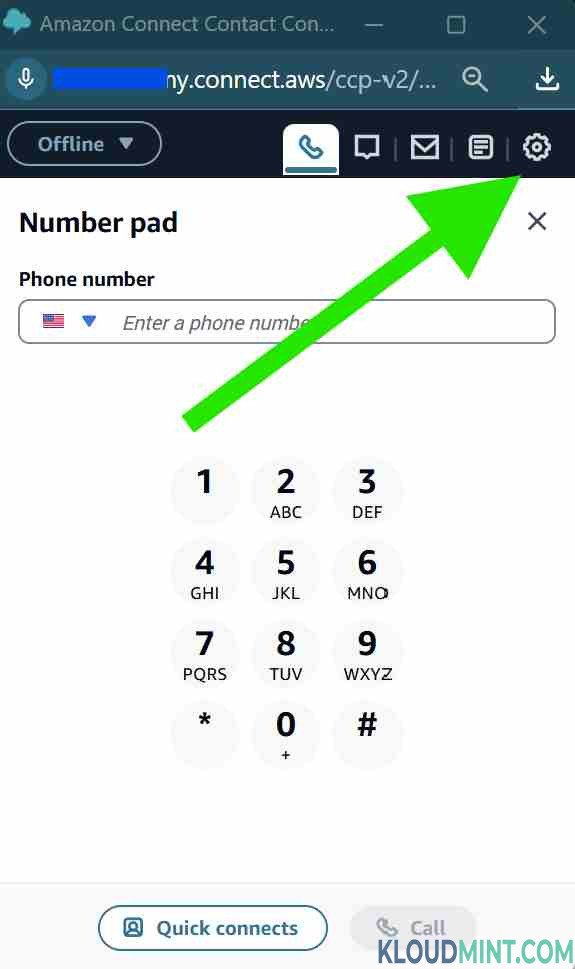
- They choose Download logs. The browser saves a log file, usually named
agent-log, to the Downloads folder.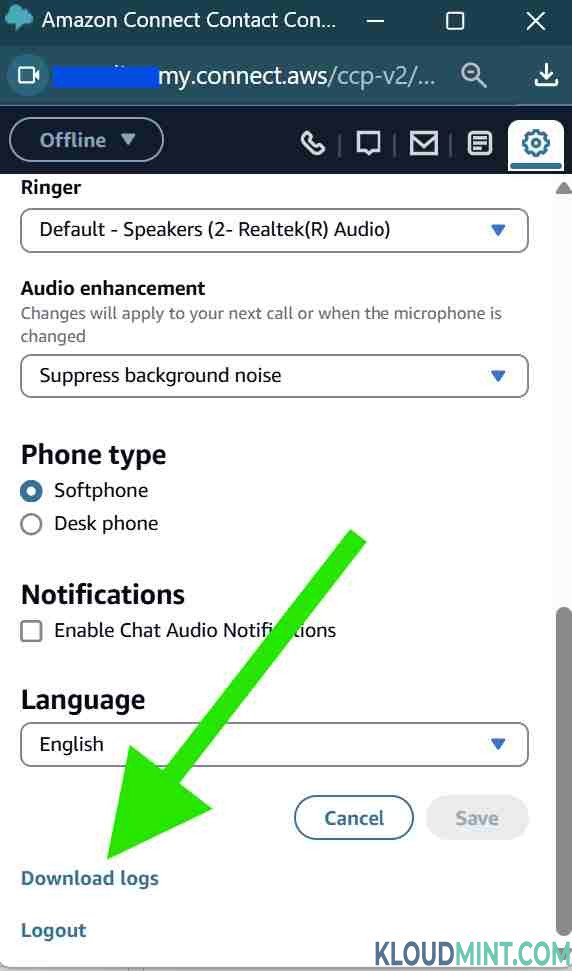
- They send you the file along with the approximate time of the problem and, if possible, the phone number or
ContactId.
From a custom CCP or embedded softphone
If your agents use a CCP embedded in a CRM such as Salesforce, ServiceNow, Zendesk or a custom app, the Streams library still keeps the log. Your developers can expose a download option using connect.getLog().download(), or agents can open the standard CCP in a separate tab and download from there.
Tips for useful logs
- Ask for the log on the same day. Logs are size-limited and older lines are dropped.
- Get the agent’s local time and time zone. CCP timestamps are usually in UTC.
- If the problem only happens through Citrix or WorkSpaces, download the log from inside the virtual desktop session.
How to read a CCP log quickly
A raw CCP log can run to thousands of lines of JSON-like entries. Instead of searching by hand, load it into the free Kloudmint CCP Log Parser. It runs entirely in your browser, so the log isn’t uploaded anywhere, and it groups the entries into:
- a timeline of agent states and contacts,
- a list of errors and warnings with plain-English explanations,
- softphone and network findings such as ICE failures, media timeouts and lost connections,
- per-contact details you can match against the contact record.
It also reads .gz files and large logs, so agents can send the file exactly as it was downloaded.
Common problems and what the log shows
1. Calls connect but there is no audio, or audio in one direction only
Look for WebRTC ICE or media-connection failures around the call. This almost always means the UDP media path to AWS is blocked or being routed badly by a firewall, proxy or VPN. Check the required domains and ports with the Allowlist Auditor, then test the agent’s machine with the Agent Workstation Validator.
2. Calls go to “Missed” without ringing
The log shows a contact arriving and then timing out, or the agent going into a missed or error state. Common causes are the CCP running in a background tab that the browser has throttled, a pop-up blocker, or the softphone failing to initialise because microphone permission was never granted.
3. The agent keeps going Offline or the CCP reloads
Look for WebSocket disconnects, authentication or session-expiry errors, and repeated reconnects. These point to an unstable network, an aggressive proxy timing out long-lived connections, or single sign-on session settings.
4. Microphone or headset problems
Permission-denied messages or device changes during a call mean the browser couldn’t use the microphone, or the agent switched devices mid-call. Check the browser’s site settings and close other apps that take control of the headset.
5. Problems only on virtual desktops
If audio is poor only through Citrix, WorkSpaces or Horizon, the voice is probably going through the remote session instead of being optimised. Run the VDI Compatibility Tester inside the session.
Combine the CCP log with other evidence
The CCP log shows the agent’s side. For the full picture of a contact:
- Open the contact’s record in the CTR Parser to see the queue, the agent, the timings and how the contact ended (the disconnect reason).
- Follow the contact through its flows in the CloudWatch Log Analyzer if the problem happened before the call reached the agent.
- Convert timestamps between UTC and local time with the Unix Timestamp Converter so all the sources line up.
What to send AWS Support
If you need to open a case, include the CCP log, the affected ContactId, the time and time zone, the agent’s browser and version, how they connect (office, home, VPN or VDI), and the result of the workstation check. That usually saves a full round of questions.
Frequently asked questions
Where are CCP logs stored?
In the agent’s browser, locally. They aren’t sent to Amazon Connect or CloudWatch automatically, which is why the agent has to download them.
Do CCP logs contain customer data?
They can include phone numbers, contact IDs and agent details. Treat them as internal data. The Kloudmint parser processes the file in your browser and doesn’t upload it.
Can I collect CCP logs centrally?
Yes, with a custom CCP. Your developers can use the Streams library to forward log entries or softphone metrics to your own backend, for example API Gateway and CloudWatch. The standard CCP doesn’t do this by itself.
Try it now: download a CCP log and open it in the free CCP Log Parser. There’s nothing to install and nothing is uploaded.