
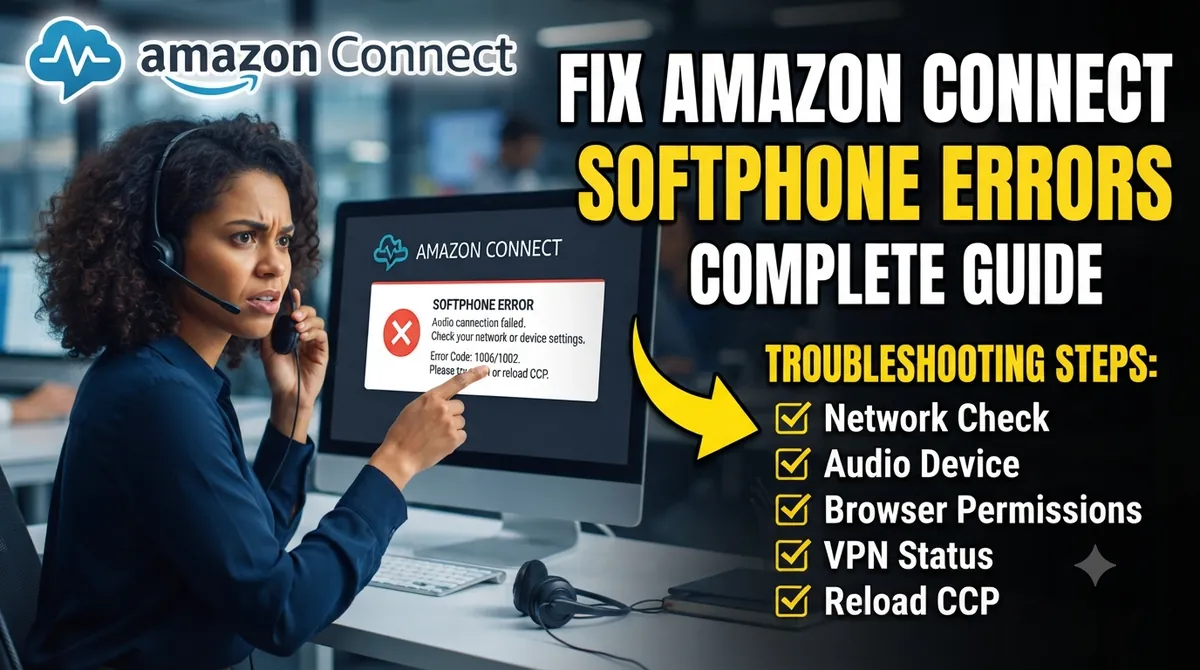
The Amazon Connect softphone runs inside the agent’s browser. When it fails, agents miss calls, hear nothing, or see a red error banner in the Contact Control Panel (CCP). This page lists every common softphone error in one place, with the cause and the fix, and links to a detailed guide for each one.
Amazon Connect Softphone: Quick Fix
Check these five things first. Together they fix most softphone problems.
- Allow microphone access for the CCP site in the browser, then refresh the page.
- Open UDP 3478 outbound to
TurnNlb-*.elb.REGION.amazonaws.comand TCP 443 to the Connect domains. - Test without VPN or proxy. If it works, the VPN or proxy is the problem.
- Run the Endpoint Test Utility on the agent’s machine. Latency should stay under 300 ms.
- Use one CCP tab only, in a supported browser, with extensions turned off for testing.
How the Softphone Connects (and Where It Breaks)
The softphone needs three kinds of connection. If any one is blocked, you get an error.
| Connection | What it does | Port | Typical error when blocked |
|---|---|---|---|
| API endpoints | Login, agent state, accept/reject contacts | TCP 443 | acceptContact API request failed, Initialization Failed |
| Signaling endpoint | Sets up each call (WebSocket) | TCP 443 | Failed to establish softphone connection, signalling_connection_failure |
| Media endpoint (TURN) | Carries the actual voice | UDP 3478 | ice_collection_timeout, Call failed due to a browser-side WebRTC issue |
For CCP v2, the signaling domain is *.transport.connect.REGION.amazonaws.com. The media domain is TurnNlb-*.elb.REGION.amazonaws.com. Replace REGION with your instance Region. Full list: Amazon Connect Media Endpoint Blocked by Firewall.
Amazon Connect Softphone Error Lookup Table
Find the message your agent sees, then follow the fix.
| Error or symptom | Main cause | Fix | Detailed guide |
|---|---|---|---|
| Microphone is not accessible – “Enable access to the microphone and refresh the page” | Browser has no mic permission for this session; in Firefox the CCP tab is not in focus | Allow mic for the CCP site, refresh. In Firefox, keep the CCP tab in focus when accepting calls. | Agent Can’t Hear Caller |
| Initialization Failed – “Try fixing your connection by logging out…” | API or signaling domains not allowlisted, or WebSocket blocked | Allowlist all domains in AWS “Set up your network” Option 1. Test without proxy. | Firewall guide |
| Failed to establish softphone connection | Signaling failed (signalling_connection_failure or signalling_handshake_failure), or media channel to TURN blocked |
Allow TCP 443 to the signaling domain and UDP 3478 to TurnNlb. Check DNS resolves. | Firewall guide |
| ice_collection_timeout / Call failed due to a browser-side WebRTC issue | UDP 3478 to the TURN endpoint times out, so no ICE candidates | Open outbound UDP 3478. Check NAT and VPN. Check latency. | ICE Collection Timeout fix |
| acceptContact API request failed | Agent cannot reach the API endpoint in time (network, proxy, latency) | Check TCP 443, proxy and network stability. Review API call metrics in CCP logs. | acceptContact fix |
| Missed calls, no ringing shown | WebSocket or API snapshots not reaching the CCP; no mic access; tab not in focus (Firefox) | Fix allowlist and WebSocket traffic; check mic permission; one CCP tab only. | Read CCP logs |
| Audio stops mid-call (“Lost ICE connection” in logs) | Media connection on UDP 3478 dropped (VPN, Wi-Fi, firewall timeouts) | Use wired network, test without VPN, check firewall UDP timeouts. | ICE guide |
| One-way audio | Another app has exclusive control of mic or speaker, or NAT issue | Turn off Windows exclusive mode for the device; close other calling apps. | Agent Audio Issues |
| Echo | Mic picking up speaker sound | Wired headset, same device for mic and speaker. | Amazon Connect Echo |
| Dead air on first call after Windows 11 reboot | NIC restarts when the browser requests audio priority | IT sets qWAVE, ndisuio.sys, dmwAppushSvc, SstpSvc and RasMan services to Automatic. | — |
| This browser is not supported | Old or unsupported browser version | Update to a supported browser. | Supported Browsers |
| CCP freezes when accepting a contact | High latency, low CPU or memory, screen recorders, VDI, browser extensions | Close heavy apps, disable extensions, check API latency in CCP logs. | Read CCP logs |
| Softphone fails only in embedded CCP (CRM, custom app) | Page not in Approved origins, or Content Security Policy blocking the CCP | Set allowFramedSoftphone, add the origin to Approved origins. |
CSP / Streams fix |
| Poor audio in VDI (Citrix, WorkSpaces, Omnissa) | Audio travels through the virtual desktop | Enable Connect audio optimization (WebRTC redirection). | VDI audio fix |
Before You Troubleshoot: Basic Checks
| Check | Good result | Tool |
|---|---|---|
| Browser | Latest version of a supported browser | Supported browsers list |
| Network latency to your Region | Average under 300 ms | Endpoint Test Utility – how to use it |
| UDP 3478 and TCP 443 outbound | Allowed to Connect domains | Your firewall team / Agent Workstation Connectivity Validator |
| Microphone and headset | Detected and allowed in the browser | Endpoint Test Utility |
| VPN / proxy | Real-time traffic split-tunneled, or Connect domains bypassed | Test with VPN off |
Packet loss (CloudWatch ToInstancePacketLossRate) |
Near 0; above 0.2 is a serious network issue | CloudWatch metrics |
Softphone vs Desk Phone
Instead of the browser softphone, an agent can take the audio of a call on any phone, such as a mobile, while still managing the call in the CCP on their computer.
- In the CCP, open Settings.
- Under Phone type, choose Desk phone.
- Enter the phone number and choose Save.
Administrators can also set this per user under Users → User management → Phone type.
Cost: AWS states that outbound telephony charges occur when a desk phone is used to answer inbound calls, because the audio is extended to the agent over the public phone network. AWS recommends softphones over desk phones for cost.
How to Collect Evidence for Softphone Problems
- Write down the contact ID and the time of the failed call (in UTC).
- Download the CCP logs right away. They live only in the current browser session. Guide: Download and Read CCP Logs.
- Search the logs for these messages:
signalling_connection_failureorFailed connecting to signaling server→ TCP 443 signaling is blockedICE collection timed outorNo ICE candidate→ UDP 3478 media is blocked'acceptContact' API request failed→ API endpoint or network delayLost ICE connection→ media dropped during the call
- Run the Endpoint Test Utility on the same machine and save the result.
- Check the scope: one agent (workstation), one site (local network), or everyone (a change on your side or in the Region).
FAQ
Which ports does the Amazon Connect softphone need?
Outbound TCP 443 for the API and signaling, and outbound UDP 3478 for the voice media to TurnNlb-*.elb.REGION.amazonaws.com.
Why does the softphone fail on one network but not another?
AWS lists firewalls, proxies, VPNs and network instability as causes of connection failures and missed calls. Compare the two networks against the required ports (TCP 443, UDP 3478) and domains.
Why do agents get missed calls without hearing a ring?
The CCP did not receive the incoming contact in time, or it had no microphone access. Check WebSocket traffic, mic permission, and that only one CCP tab is open.
Can I use the softphone over a VPN?
Yes, but VPNs often add delay or break UDP. Use split tunneling so Connect voice traffic goes directly to the internet.
Should I allowlist IP ranges or domains?
AWS recommends Option 1, the domain allowlist. If you use IP ranges instead, AWS advises monitoring the Amazon Connect IP ranges for changes and adding new ones, including UDP 3478 for softphone media.
Related Guides
- How to Fix Amazon Connect ICE Collection Timeout
- Fixing acceptContact API Request Failed
- Amazon Connect Media Endpoint Blocked by Firewall
- How to Download and Read CCP Logs
- Amazon Connect Endpoint Test Utility
- Amazon Connect Supported Browsers
- Amazon Connect Echo: Causes and Fixes
- Amazon Connect VDI Audio Quality Fix
Sources (AWS documentation)
- Contact Control Panel (CCP) issues – Amazon Connect Administrator Guide
- Set up your network to use the CCP
- Troubleshoot audio quality issues
- Troubleshoot your network for call quality and disconnect problems
- AWS re:Post – Troubleshoot CCP softphone errors
- AWS re:Post – Troubleshoot CCP user interface errors
- AWS re:Post – Troubleshoot stopped call audio
- AWS re:Post – Troubleshoot audio quality issues